
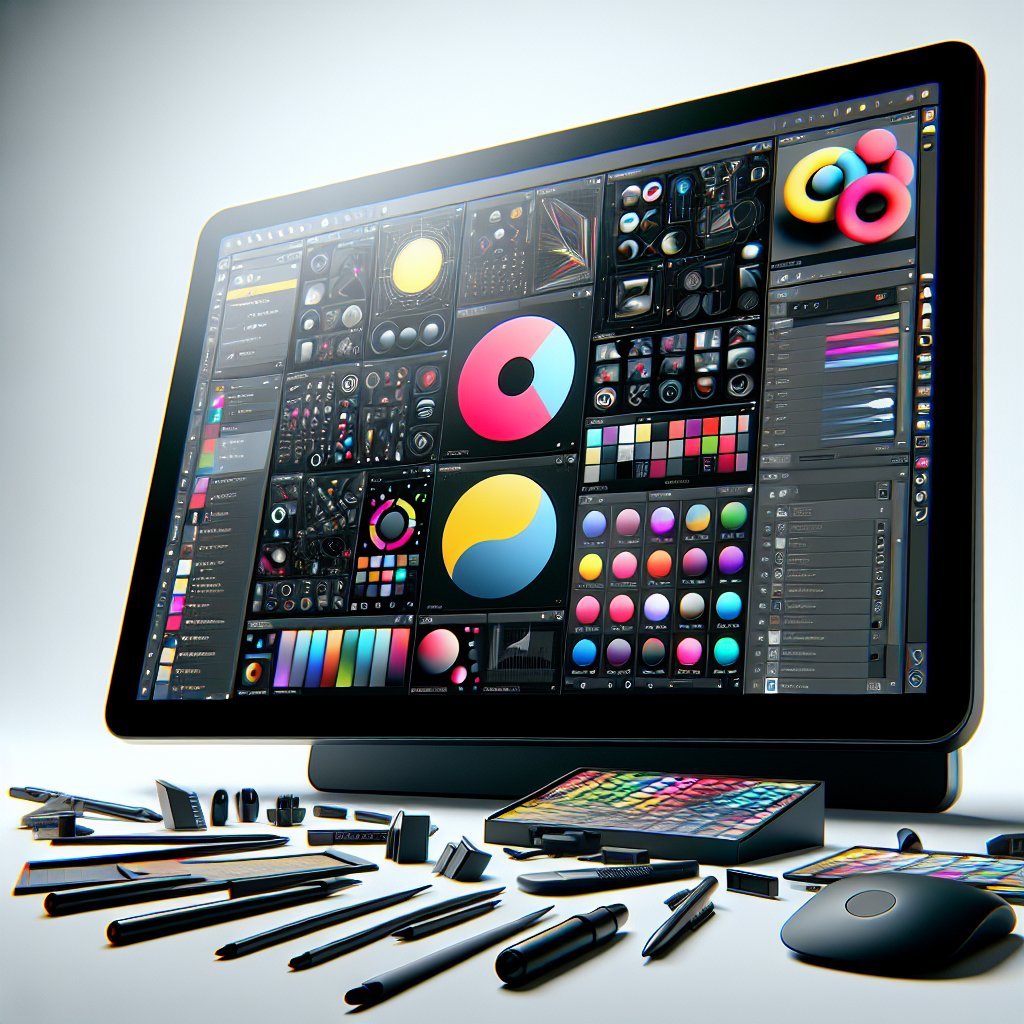
Understanding the Workspace A clear, purpose-built workspace determines how efficiently you create. Digital illustration software typically divides the screen into a central canvas, surrounding tool panels, and supplementary docks for properties, layers, and asset libraries. Look for an interface that prioritizes content area while keeping frequently used controls one click away. Workspaces that adapt to different stages — sketching, inking, coloring, compositing — reduce modal friction and support focus.
Essential Interface Components Modern illustration UIs share several core components: – Canvas: The drawing area, with zoom, rotation, and multiple view modes. – Tool palette: Quick access to brush, eraser, selection, and vector tools. – Layers panel: Organizes artwork into stacked, non-destructive elements. – Properties/Inspector: Context-sensitive controls that change with the active tool. – Color panel: Swatches, eyedropper, color wheel, and color history. – Timeline or history: Undo/redo stack and animation frames if supported. – Asset library: Brushes, patterns, vectors, and reference images stored for quick reuse. Understanding how these components interrelate is essential for streamlining tasks.
Customization and Workflow Optimization Customization transforms a generic interface into a personal studio. Look for adjustable docking, collapsible panels, and keyboard shortcut remapping. Saveable workspaces let you switch between tasks—concepting, final art, or export—without rebuilding the UI. Macro or action recording automates repetitive tasks like resizing exported assets or applying batch color adjustments. Workspaces with context-aware menus reduce visual clutter by showing only relevant options.
Toolbars and Tool Panels Toolbars should balance discoverability with minimalism. Group related tools (selection tools, transform tools, vector tools) and allow nested tool access to keep the palette compact. Prefer software where tool panels can be undocked and placed on a secondary monitor. Visual icons paired with text labels aid learning; hover tooltips with keyboard shortcuts speed adoption. Custom toolbars that hold your most-used tools improve cadence during long sessions.
Canvas and Navigation Controls Fast, fluid canvas navigation is critical. Support for smooth pan, pinch-to-zoom, canvas rotation, and pressure-sensitive input improves line quality and ergonomics. Preview modes—wireframe, pixel preview, and split-view—help you check details and overall composition simultaneously. Rulers, guides, and customizable grids assist with perspective and layout. High-DPI and tiled canvas handling matters for large, high-resolution files.
Layer Management Robust layer systems enable complex illustrations. Look for: – Layer types: raster, vector, adjustment, and mask layers. – Groups and nested folders for hierarchical organization. – Blend modes and opacity controls per layer. – Layer locking, color-coding, and search/filtering by name or type. – Layer comps or snapshots to save staging of different versions. Non-destructive masking and clipping groups make experimentation safe and reversible.
Color Management and Swatches A professional color workflow requires color profiles, gamut warnings, and precise color pickers. Software should support RGB, CMYK, LAB, and Pantone references for print compatibility. Swatch libraries and global colors let you update palettes across a document quickly. Gradient editors, color harmonies, and accessible eyedropper tools accelerate color exploration. History panels that store recent colors and sampled palettes improve consistency across projects.
Brush Engines and Presets Brush systems define an illustrator’s expression. Evaluate brush engines on: – Pressure, tilt, and velocity sensitivity. – Texture blending, scattering, and dynamic jitter. – Customizable brush shapes and stroke stabilization. – Ability to import, export, and share brush presets. Non-destructive brush effects that interact with layer properties (blend modes, clipping) offer creative flexibility. Performance at high stroke rates and with large brush libraries matters for uninterrupted flow.
Non-destructive Editing Features Non-destructive workflows preserve creative freedom. Key features include: – Adjustment layers for color, curves, and effects. – Smart objects or linked assets that retain editability. – Vector masks and editable paths. – Live filters and procedural textures. These tools allow global changes without flattening or rasterizing, reducing repetitive rework and keeping file versions manageable.
Performance and Accessibility Considerations A polished interface balances feature richness with responsiveness. Look for GPU acceleration, multi-threaded rendering, and caching for smoother brushes and transformations. Memory management and incremental autosaves prevent data loss and sluggishness. Accessibility features—high-contrast themes, scalable UI, keyboard navigation, and support for assistive devices—make the software usable for more people. Cross-platform consistency ensures a familiar workspace whether on desktop, tablet, or hybrid devices.
Collaboration, File Handling, and Export Interfaces that integrate cloud syncing, version history, and shared asset libraries streamline team workflows. Support for industry-standard file formats (PSD, SVG, PDF, TIFF) and export presets for web, print, and social platforms reduces manual tweaking. Batch export, artboard management, and slices speed delivery. Live collaboration modes or comments within the project can replace clumsy email exchanges.
Choosing the Right Interface Match interface complexity to your needs. Beginners benefit from guided, simplified layouts with contextual help and starter templates. Professionals need advanced docking, extensive customization, and deep integration with other tools. Trial versions and community forums are invaluable for testing real-world responsiveness and plugin ecosystems. Prioritize software whose interface aligns with your process: quick iterations, linework precision, or heavy composite painting.
Practical Tips for Getting Comfortable – Customize a core toolbar with your five go-to tools. – Set workspace presets per project phase. – Learn and remap ten essential shortcuts to reduce mouse dependency. – Use reference panels to pin inspiration images near the canvas. – Regularly clean up layers and assets to keep files lean and UI responsive. These habits, combined with an interface designed for efficiency, will accelerate learning and elevate output quality.
SEO Pointers Embedded for Discovery Use targeted keywords naturally: digital illustration software, illustration interface, canvas navigation, brush engine, layer management, color management, non-destructive editing. Organize content with descriptive headings and bullet lists for featured snippets. Include internal links to tutorials, brush libraries, and UI walkthrough videos when publishing online. Optimize images of interface screenshots with descriptive alt text and concise file names to improve visibility in search and image results.