
Workspace Layout and Canvas Management A well-organized workspace is the backbone of any digital illustration program. Canvas controls should include zoom, rotate, pan, and pixel/real-size toggles that are reachable via mouse, keyboard, or touch gestures. Grid overlays, perspective guides, and safe margins help plan compositions. Look for sophisticated snapping, ruler systems, and multiple canvas tabs for managing iterations.
Tool Panels and Customization Toolbars must be intuitive and context-aware, offering common actions like brush selection, eraser, selection tools, transform, and vector options. Customizable tool layouts, collapsible groups, and keyboard shortcut mapping increase speed. Drag-and-drop panels, dockable palettes, and workspace presets let artists switch between illustration, inking, painting, and UI design modes quickly.
Brush Engine and Stroke Controls A powerful brush engine with pressure, tilt, velocity, and angle sensitivity is essential for natural strokes. Look for dynamic brush settings, dual brush blending, texture mapping, scattering, and wet media simulation. Live preview, responsive smoothing, and stroke stabilization improve line quality without interrupting flow.
Layers, Masks, and Non-Destructive Workflow A robust layers panel is critical: nested groups, blend modes, opacity, clipping masks, layer locking, and searchable labels streamline complex files. Adjustment layers, smart objects, and live filters enable non-destructive edits and faster iteration.
Color Management and Palettes Integrated color wheels, advanced swatch libraries, and asset syncing are indispensable for consistent palettes. Color profiles, gamut warnings, and CMYK-preview help prepare illustrations for print or web.
Vector vs Raster Tools Interfaces that blend vector precision with raster richness allow scalable assets and painterly textures. Pen tools, anchor manipulation, and boolean operations should coexist with pixel brushes, smudge, and texture layers.
Panels for Reference, Assets, and Libraries Dedicated panels for references, reusable assets, and cloud libraries accelerate composition and brand consistency. Searchable asset tags, versioning, and quick drag to canvas save time during iteration cycles.
Performance, GPU Acceleration, and File Management Real-time GPU acceleration, async saving, and progressive resolution previews maintain responsiveness with large files. Efficient autosave, export presets, layered file formats, and embedded metadata support professional pipelines.
Accessibility, Shortcuts, and Input Devices Customizable keyboard maps, modifier behaviors, and on-screen HUDs reduce friction and speed workflows. Pressure curve calibration, tilt profiles, and multi-touch gestures ensure compatibility with tablets, displays, and styluses.
Collaboration, Feedback, and Versioning Built-in commenting, time-stamped versions, and shared palettes streamline team review and client feedback. Cloud sync, conflict resolution, and exportable style guides keep designs consistent across platforms.
Onboarding, Help, and Learning Resources Tooltips, contextual walkthroughs, and searchable tutorials reduce learning curves for new users. Sample files, community marketplaces, and template galleries accelerate skill acquisition and asset discovery.
Practical Tips for Choosing and Optimizing Interfaces Test trial versions with large layered files, evaluate brush responsiveness, verify color profile fidelity, customize shortcuts to match your muscle memory, and prioritize software that balances feature depth with performance. Keep a minimal, distraction-free workspace for focused work, save personalized workspace presets, and back up brush and asset packs. Regularly clean caches, optimize GPU settings, and export layered backups before major edits.
SEO Considerations for Interface-Related Content Use keyword-rich headings, descriptive alt text for UI screenshots, and concise meta descriptions highlighting unique interface strengths like “brush engine”, “layer management”, and “GPU acceleration”. Include long-tail queries such as “best digital illustration interface for pressure sensitivity” and internal links to tutorials and comparisons.
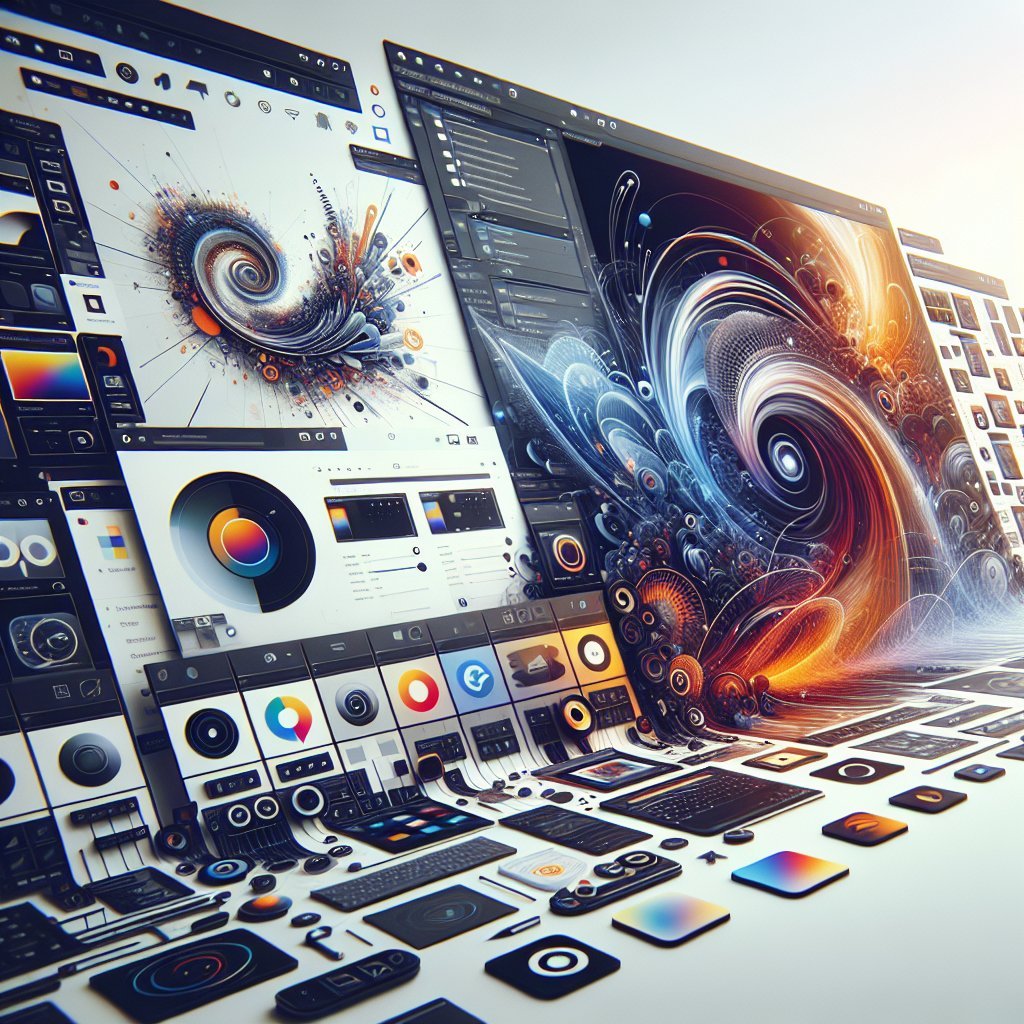
Mobile and Tablet Interface Differences Mobile UIs emphasize gesture shortcuts, simplified toolsets, and cloud synchronization to accommodate touch input and smaller screens. Responsive panels, collapsible menus, and pressure-aware brushes help bridge the gap between desktop-class features and mobile convenience.
Future Trends in Illustration Interfaces Expect AI-assisted brushes, predictive layout suggestions, live collaboration overlays, and deeper hardware integration for haptic feedback. Modular UIs, plugin ecosystems, and standardized interchange formats will improve interoperability across tools and teams.
Practical Interface Checklist Confirm customizable shortcuts, test brush latency, ensure stable multisampling for smoothing, verify export presets, check that layers and masks are searchable, and test import/export with colleagues.
Common Interface Pitfalls to Avoid Avoid cluttered default toolbars, poorly labeled icons, inflexible workspaces, slow brush engines, and hidden export options that complicate handoffs.
Sample Workflows and Interface Shortcuts Storyboard to thumbnail: use grid guides, snap to perspective, and swap layer visibility with hotkeys. Inking to color: create a line-art group, apply clipping masks for flats, and use adjustment layers for color correction. Texture integration: import texture assets into a dedicated textures panel and set blend modes to overlay or multiply for depth.
Evaluating Interface Quality Metrics Measure startup time, average brush latency under pressure, memory footprint with large canvases, and export fidelity across file types. User satisfaction and learning time are qualitative metrics; complement them with objective benchmarks.
Integrations and Export Options Verify PSD, SVG, and proprietary formats compatibility. Check one-click export to web, slices for UI elements, asset bundling, and direct publish to portfolio or cloud services.
Security and Licensing Considerations Confirm local backups, encryption for shared files, and clear licensing for bundled brushes and assets. Perpetual licenses, subscriptions, and team plans affect cost and administrative overhead.
Optimizing for SEO with Interface Assets Name screenshot files with descriptive terms, add structured data for tutorials, and host fast-loading demo clips that showcase interface motion. Short video captions improve visibility on social platforms and search.
Case Studies and Examples Compare interfaces across popular tools: one app may excel in brush realism and customization, another in vector precision and layout, and another in real-time collaboration and cross-device sync. Map features to your primary needs—art style, delivery format, and team collaboration—then pilot for a week.
Customization Examples Bind frequently used actions to a tablet’s express keys, create macro chains for repetitive exports, and build thematic brush sets for specific projects. Save workspace snapshots for client review modes and production modes.
Speed Tips Use layer comps, quick masks, and temporary adjustment layers. Assign batch export presets and enable hardware acceleration. Keep frequently used brushes in a favorites panel to reduce menu diving.
Accessibility Reminder High-contrast UI themes, scalable icons, and keyboard-only operation improve inclusivity for all creators. Experiment regularly and document your interface choices for teammates daily