
Essential Hardware for Remote Designers
High-resolution monitors, color-accurate panels and dual-screen setups improve visual fidelity and workflow. Look for IPS or OLED panels, 4K options for detailed design, and at least 27-inch screens to reduce eye strain. Graphics tablets and pen displays offer precision—Wacom, Huion and XP-Pen remain popular; choose pressure sensitivity, tilt support and comfortable stylus ergonomics. A colorimeter ensures accurate calibration for print and digital deliverables.
Computing Power and Storage
Fast CPUs, ample RAM and dedicated GPUs accelerate rendering, prototyping and multitasking across Adobe Creative Cloud, Figma and 3D apps. Use NVMe SSDs for project files and scratch disks; maintain external SSD backups for versioned archives.
Must-Have Software & Services
Designers benefit from a polished toolstack: Adobe Creative Cloud, Figma, Sketch (Mac), Affinity suite and Blender for 3D. Prototyping tools like Framer, InVision and Principle streamline interaction design while Zeplin and Abstract improve handoffs. Use cloud storage (Google Drive, Dropbox, OneDrive) synced with selective folders to conserve local space and enable remote collaboration.
Collaboration & Communication
Reliable video conferencing hardware and software preserves client relationships and team syncs. Invest in a high-quality USB-C webcam, noise-cancelling microphone or headset and an audio interface for exceptional call clarity. Use Slack, Microsoft Teams or Discord for async messaging, and Loom or quick-record tools for walkthroughs and feedback.
Ergonomics & Workspace Essentials
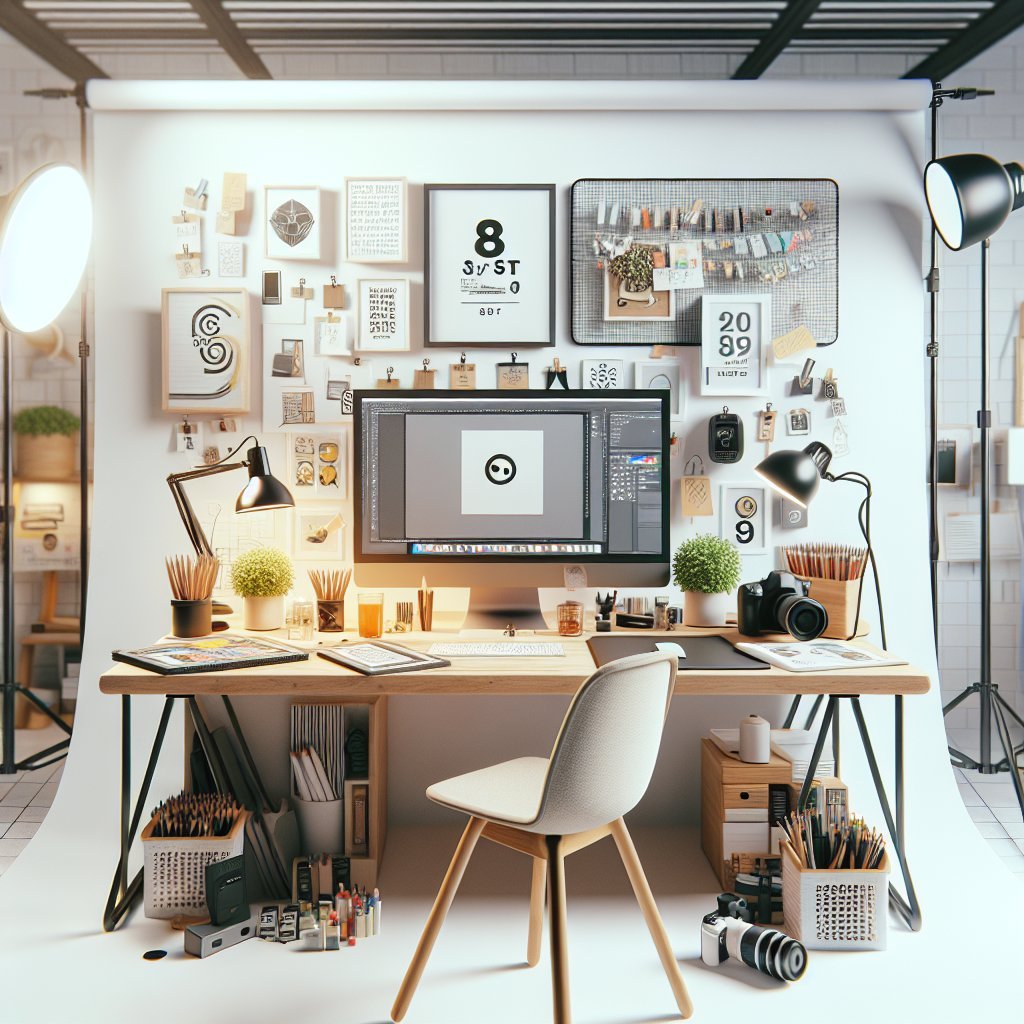
A height-adjustable desk and ergonomic chair reduce fatigue for long design sessions; prioritize lumbar support and stable desk surface. Cable management, monitor arms and desk organizers maintain focus and a tidy aesthetic, improving creative flow.
Color, Typography & Asset Management
Maintain brand kits and style guides with organized libraries in tools like Figma, Adobe Libraries or Sketch components to ensure consistency. Use version control for design files—Abstract, Kactus or Git-based workflows reduce conflicts and track changes across iterations.
Productivity Tools & Automation
Task managers like Todoist, Asana or Trello organize briefs, milestones and deadlines; integrate calendar apps for time blocking. Automate repetitive tasks with Zapier, Make or short scripts; create keyboard shortcuts and app macros to speed routine actions.
Security, Backup & Performance
Use a VPN, password manager and enable two-factor authentication to protect client assets and account access. Automated backups, redundant external drives and cloud versioning guard against data loss; test restore procedures periodically.
Lighting, Color & Sound Control
Adjustable daylight-simulating lamps and controlled ambient lighting prevent color shifts while video calls benefit from soft, diffused key lights. Acoustic panels or rugs reduce echo; close windows during calls to minimize external noise.
Testing & Devices for Multiple Platforms
Maintain a device lab with phones, tablets and different OS versions to validate responsive designs and native interactions. Use emulators for quick checks and real devices for performance and touch accuracy.
Budgeting & Future-Proofing
Prioritize upgrades that directly affect output quality: displays, storage and color calibration tools rank high. Invest in modular peripherals, dockable laptops and cross-platform subscriptions to reduce future replacement costs.
Workflow Tips & Setting Boundaries
Define dedicated work hours, create camera-friendly backgrounds and use separate profiles or user accounts for personal and work tools. Periodic breaks, eye exercises and scheduling creative deep work in morning hours can boost output and reduce burnout.
Recommended Accessories
Portable monitor, USB docks, Ethernet adapter, SD card reader and reliable surge protectors make the setup flexible and resilient. Color swatch books, Pantone guides and glossy/matte print samplers are helpful for physical print checks.
Choosing Between Cloud vs Local Tools
Cloud design tools enable live collaboration and version history but rely on bandwidth; local apps offer offline speed and native features. Adopt hybrid workflows: keep working files local for performance and sync essential assets to cloud storage for sharing.
Accessibility & Inclusive Design Tools
Use contrast checkers, screen readers, keyboard navigation testing and colorblind-simulators during design to ensure accessible interfaces. Plugins like Stark, Accessibility Inspector and Axe help integrate accessibility checks into daily workflows.
Learning Resources & Community
Continuous learning sharpens craft: follow blogs, YouTube channels, newsletters and design systems documentation for updates and inspiration. Join Slack communities, Dribbble, Behance and local meetups to get feedback, find collaborators and stay aware of trends.
Checklist for a Ready-to-Work-from-Home Design Setup
Display(s) calibrated, dual monitors or high-res single monitor. Graphics tablet or pen display with spare nibs. Reliable high-speed internet with Ethernet fallback. Audio setup: microphone/headset and webcam. Performance-grade laptop/desktop, NVMe storage and ample RAM. Backup plan: cloud plus external drives. Ergonomics: adjustable desk, chair and monitor arms. Collaboration tools installed and tested. Accessibility checks integrated into design pipeline. Lighting and acoustics optimized for calls and accurate color work.
Selecting the Right Monitor: Key Specs
Prioritize panel type (IPS or OLED), resolution (1440p minimum, 4K recommended for print-heavy workflows), color gamut coverage (sRGB, Adobe RGB, DCI-P3) and uniformity. Consider hardware calibration support and factory calibration reports when buying to reduce initial setup time.
Optimizing File Management for Speed
Adopt consistent naming conventions, leverage smart folders and tags, and archive old projects to separate long-term storage from active working directories. Compress assets where appropriate but preserve lossless masters for final exports to keep quality intact.
Prototyping and Handoff Best Practices
Create interactive prototypes early, annotate design decisions and provide redlines or specs for developers to reduce rework. Export assets at multiple densities and maintain a tokenized design system for consistent spacing, color and typography.
Monitoring Performance and Staying Updated
Regularly update drivers, OS and design apps to access performance improvements and security patches; use staging profiles to vet major upgrades before applying them to production.
Tips for Client Presentations Remotely
Prepare concise walkthroughs, test screenshare and annotate live; send a cleaned-up PDF or prototype link after meetings to document decisions.
Sustainability and Responsible Choices
Opt for energy-efficient devices, buy refurbished gear from reputable sellers and recycle old electronics responsibly to reduce environmental impact.
Final Practical Setup Sequence
Start with reliable internet and power, set up primary display and peripherals, calibrate color, install core software and sync cloud accounts, configure backups and security, then optimize ergonomics and acoustics for sustained productivity. Revisit workflow monthly and iterate improvements regularly.