
Essential Tools for Graphic Designers Using Drawing Tablets
Hardware Essentials Drawing tablets come in several forms: display tablets, pen tablets, and pen computers. For many designers, a pressure-sensitive stylus with tilt recognition and high-resolution nib sensitivity is non-negotiable. Key hardware items include: – Tablet with at least 2048 levels of pressure sensitivity, 5080 LPI or higher for pen accuracy. – Ergonomic stylus with customizable buttons and replaceable nibs. – Stable tablet stand to adjust angle and reduce wrist strain. – High-quality cable or reliable wireless connection with low latency. Top brands to research include Wacom, Huion, XP-Pen, and Apple for iPad Pro users. Consider active area size: larger surfaces increase comfort for sweeping strokes but reduce portability.
Software and Plugins Compatibility between tablet drivers and creative applications is crucial. Common software choices: – Adobe Photoshop for raster painting, masking, and compositing. – Adobe Illustrator for vector workflows and precise curves. – Corel Painter and Krita for natural-media emulation. – Clip Studio Paint for comics and sequential art with advanced pen stabilization. Useful plugins and brushes enhance productivity: custom brush packs, texture overlays, and pen stabilization extensions. Keep drivers updated to avoid conflicts and take advantage of performance improvements.
Workspace Setup and Ergonomics A comfortable workspace increases output and reduces injury risk. Tips for ergonomic setup: – Position tablet slightly off-center for right- or left-handed use to allow a natural arm angle. – Maintain 90-degree elbow angle where possible and alternate between tablet and mouse. – Use an adjustable chair and monitor at eye level to avoid neck strain. – Implement regular microbreaks and stretching, especially for the shoulders, wrists, and forearms. Consider using a drawing glove to minimize friction and accidental touch inputs while keeping the surface clean.
Calibration, Shortcuts, and Customization Calibration ensures your cursor tracks the pen accurately. Calibrate pressure curves for sensitivity preferences, mapping low, mid, and high pressure to desired opacity or stroke width. Customize express keys, touch rings, and on-screen radial menus to speed repetitive tasks. Assign macros for: – Brush size adjustments. – Common layer operations like merging or duplicating. – Zooming and rotating the canvas. Time spent customizing shortcuts often pays off with significant workflow acceleration.
Brushes, Textures, and Asset Management Curating a professional brush library saves time. Essential brush categories: – Hard round for crisp edges and linework. – Soft round for blending and shading. – Textured brushes for grain, canvas, and natural media effects. – Specialty brushes for hair, foliage, clouds, and fabric. Organize assets in tagged folders and use asset management tools within software to quickly access favorite brushes and patterns. Back up custom brushes and presets regularly to cloud storage or external drives.
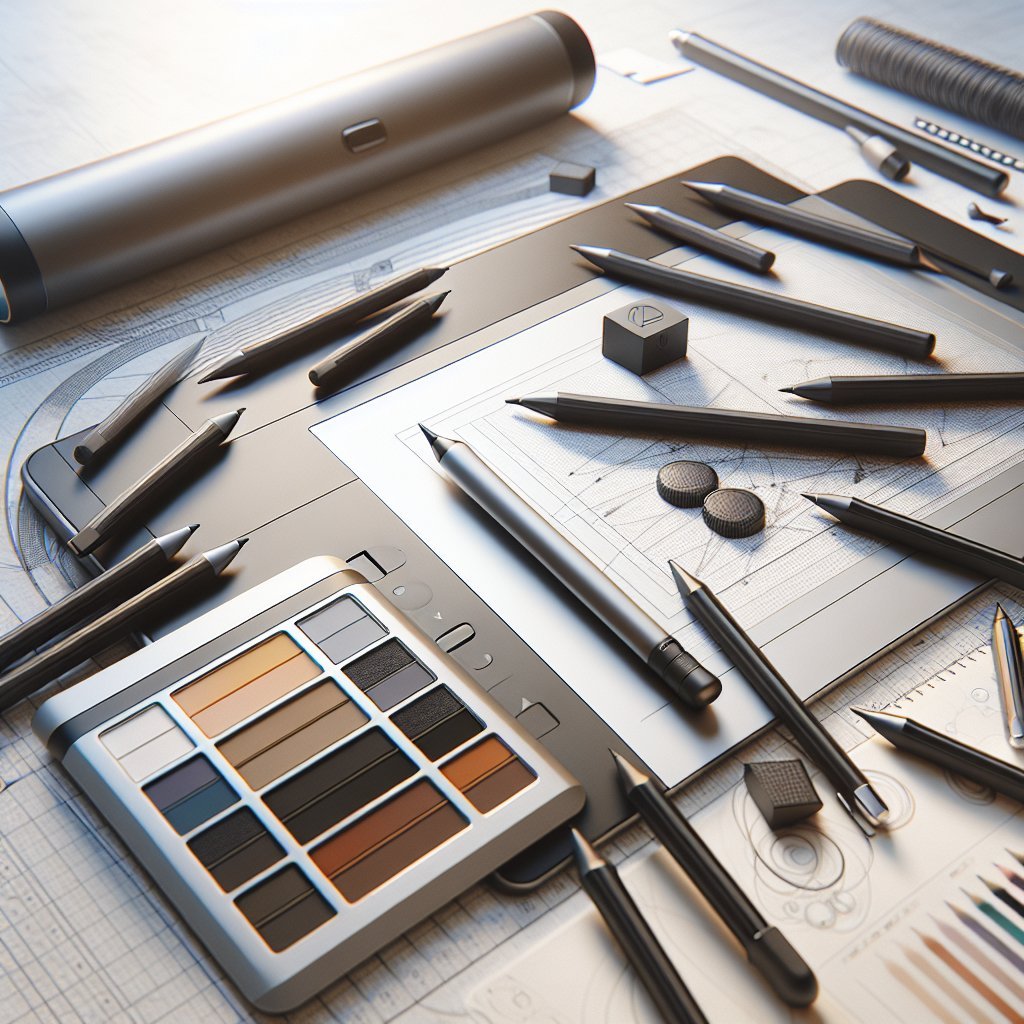
Color Management and Display Calibration Accurate color is vital for print and web consistency. Tools and practices: – Calibrate monitors with colorimeters to ensure accurate gamma, white point, and color profiles. – Work in appropriate color spaces: sRGB for web and Adobe RGB or CMYK profiles for print. – Soft-proof designs for intended output to identify gamut issues early. – Use calibrated tablets with built-in displays to reduce discrepancies between tablet and external monitor.
File Organization and Workflow Integration A disciplined file system reduces wasted time. Implement: – Versioning conventions (file_v01, file_v02_final) to track revisions. – Layer naming and grouping to facilitate handoffs and collaboration. – Non-destructive workflows using adjustment layers, masks, and smart objects. – Backup strategies including local NAS, external drives, and cloud sync for redundancy. Integrate project management tools (Trello, Asana) and version control when collaborating with teams and clients.
Accessories That Improve Productivity Small accessories often make a big difference: – Replacement nibs and nib storage to maintain pen performance. – Screen protectors with paper-like texture for improved tactile feedback. – External monitor for reference material and color grading. – High-quality headphones for concentration during long sessions. – Dedicated keyboard or keypad like Stream Deck for instant macro access.
Maintenance and Troubleshooting Routine maintenance preserves equipment longevity and performance: – Clean the tablet surface and pen regularly with appropriate wipes. – Replace worn nibs before performance degrades. – Reinstall or roll back drivers if conflicts arise after updates. – Test on another machine to isolate hardware versus software issues. Document serial numbers and warranty details to expedite repairs or replacements.
Choosing a Tablet: Practical Considerations When selecting a drawing tablet weigh: – Budget versus professional needs: entry-level tablets are fine for hobbyists, while professionals may invest in display tablets or pen computers. – Portability: tablet size and weight affect travel convenience. – Compatibility: ensure drivers support your OS and preferred software. – Community and third-party support for brushes, presets, and troubleshooting tips. Read reviews, test devices in stores when possible, and factor in long-term support from manufacturers.
Skill Tools and Training Resources Beyond physical tools, invest time in education: – Online courses and workshops focused on digital painting, vector work, or UI design. – Community forums and social channels for critiques and inspiration. – Practice exercises like gesture drawing, value studies, and color exercises optimized for tablet workflows. Continual practice combined with the right toolkit accelerates professional growth and creative confidence.
Advanced Features and Common Mistakes Look for tilt support, high report rates, and customizable pressure curves to capture natural brush behavior. Latency and parallax issues can undermine precision; test responsiveness before committing. Avoid common mistakes such as relying solely on default brushes, neglecting regular backup routines, or ignoring driver updates that fix stability issues. When collaborating, export layered files and provide color profiles to prevent surprises in production. Invest in learning gesture shortcuts and pressure control exercises to translate traditional techniques into digital fluency. Consider ergonomics accessories like wrist rests and articulated arms for long sessions. For those on a budget, prioritize pen performance and driver stability over nonessential extras like RGB lighting. If working across platforms, verify compatibility with macOS, Windows, and iPadOS builds of your primary software. Maintain a testing checklist: pen accuracy, tilt response, pressure curve smoothness, connection stability, shortcut reliability, and screen uniformity for displays. Finally, join manufacturer forums for firmware updates and community-created resources that often extend the usable lifespan of devices. Document workflows and keep a changelog for plugins and presets to simplify troubleshooting and maintain consistent deliverables across projects and team members over time and storage efficiency.