
Workspace Layout and Ergonomics Place your digital illustration tablet where your dominant hand moves freely and your elbow rests at 90 degrees. Use a height-adjustable desk or chair to keep shoulders relaxed; top of the display should sit about 2–3 inches below eye level when sitting upright. Position the tablet surface at a slight incline (10–20 degrees) with a stable stand to reduce wrist strain. Keep frequently used tools within a 12–18 inch radius to minimize reaching. Invest in an ergonomic chair with lumbar support and consider a dedicated footrest if your feet do not rest flat.
Hardware Choices Select a tablet that suits your workflow: pen displays are ideal for direct drawing, drawing tablets paired with monitors suit detailed work and color-critical tasks. Prioritize pressure sensitivity, tilt recognition, and low latency. If you produce print work, choose a device that supports high-resolution output and accurate pen tracking. Consider GPU-accelerated systems for smoother brush rendering in programs like Photoshop, Clip Studio Paint, or Procreate (via iPad). For portability, balance battery life, weight, and stylus charging methods.
Display and Color Setup Calibrate your monitor and pen display with a colorimeter to ensure accurate colors and consistent results across devices. Set color profiles (sRGB, Adobe RGB, or P3) according to your delivery requirements. Use a monitor hood to reduce glare and consider a secondary reference monitor for swatches and palettes. Maintain a resolution that allows comfortable zooming and brush detail without excessive panning. Enable display scaling cautiously to preserve interface usability.
Desk Organization and Cable Management Adopt modular storage: drawers or desktop organizers for pens, nibs, and adapters keep the surface uncluttered. Use cable sleeves, clips, and under-desk trays to route power and data cables, preventing tangles and accidental tugs on the tablet. Place charging docks or a power strip within easy reach. Keep a microfiber cloth, replacement nibs, and a small toolkit on hand for quick maintenance. Label spare adapters and cables to streamline troubleshooting.
Lighting and Ambient Conditions Combine layered lighting: diffuse overhead light, adjustable task lighting, and bias lighting behind displays to reduce eye strain and improve perceived contrast. Aim for 5000–6500K color temperature when color matching is critical. Reduce surrounding screen reflections with matte surfaces or anti-glare films. Control ambient light with blackout curtains or blinds for consistent conditions during long sessions.
Workflow Optimization and Software Setup Customize brushes, palettes, and workspace layouts in your primary illustration software to eliminate repetitive steps. Create action macros or use built-in automation to accelerate common tasks like line smoothing, flattening layers, and exporting assets. Organize files with a clear naming convention and folder structure: projectname_version_date_client. Use cloud sync for active projects and local SSDs for large asset libraries to balance access speed and redundancy. Integrate reference board tools like PureRef or Moodboard plugins to keep inspiration visible without switching windows.
Pen, Tablet Configuration, and Accessories Map pen buttons and tablet express keys to frequently used commands: undo, brush size up/down, pan, zoom, and hand tool. Test different pressure curve settings and tip feel to match your traditional media preferences. Use a texture sheet or glove to emulate paper friction and reduce smudging. Consider a programmable keypad, external dial, or MIDI controller for granular control over brush parameters. Swap nib styles periodically to maintain consistent stroke feedback.
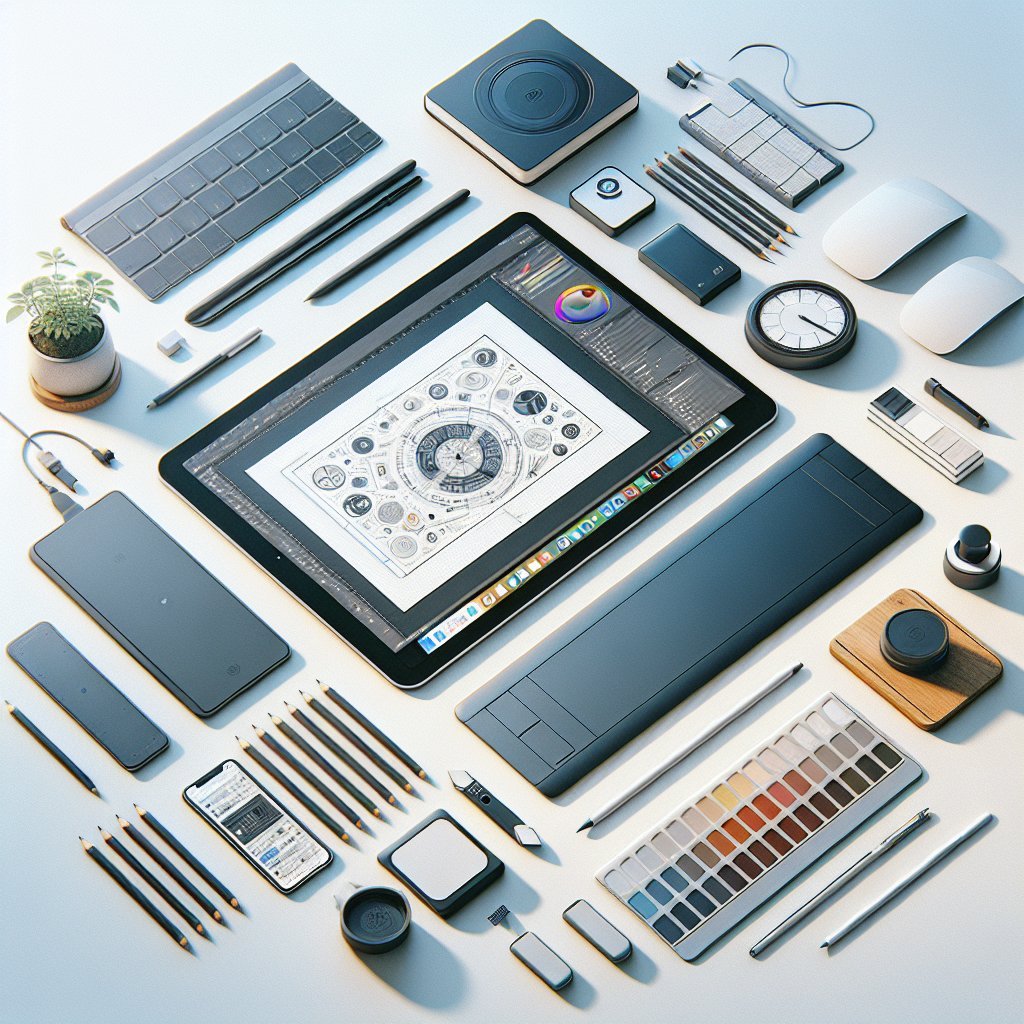
Maintenance, Backup, and Productivity Habits Schedule weekly cleaning for screens, tablet surfaces, and peripherals using manufacturer-recommended products. Update drivers and firmware regularly, but checkpoint critical projects before major updates. Implement a backup routine: incremental local backups with weekly full images and offsite cloud backups for critical files. Use timeboxing or the Pomodoro Technique to prevent fatigue and encourage micro-breaks for stretches and eye rest. Maintain a healthy workflow boundary to prevent creative burnout.
Space Personalization and Inspiration Curate a small gallery of favorite prints, color swatches, or plants to create a motivating environment without overwhelming the workspace. Keep a sketchbook or whiteboard nearby for analog brainstorming and thumbnailing. Display a reference library or digital tablet stand with rotating mood images for quick creative resets. Optimize acoustics with soft furnishings or acoustic panels to maintain focus during long rendering sessions. Prioritize comfort and visual clarity to sustain creative momentum.
SEO and Productivity Keywords to Target Digital illustration tablet workspace, tablet stand, ergonomic drawing setup, pen display calibration, color-accurate monitor, cable management, lighting for artists, workflow optimization, customizable shortcuts, drawing tablet accessories.
Advanced Setup: Dual Monitors, Color Workflow, and Remote Collaboration Implement a dual-monitor workflow with your pen display as the primary canvas and a calibrated secondary monitor for references, toolbars, or video calls. Use hardware or software KVM solutions to switch input sources seamlessly when using multiple machines. For color-critical projects, produce print proofs and soft proofs, embedding profiles during export and communicating color expectations to clients. When collaborating remotely, share layered files via version-controlled cloud repositories or use screen-sharing with pen pressure support when available. Invest in a reliable, high-bandwidth internet connection and backup power for uninterrupted creative sessions.
Budget-Friendly Setup Tips Optimize existing hardware by updating drivers and disabling unnecessary background tasks to free resources. Repurpose an old monitor as a reference display or use tablet tilt adapters instead of expensive stands. Shop for refurbished pen displays or previous-generation tablets to get better value. Use open-source software or subscription-free tools for concepting, then shift to premium apps only for final production. Build simple DIY solutions for cable routing and lighting to reduce costs without sacrificing ergonomics.
Daily Checklist for a Productive Session Warm up with quick sketches and hand stretches for five to ten minutes. Calibrate display and test pen responsiveness before starting major work. Open reference boards, set document color profile and canvas size, and confirm autosave intervals. Clear distractions: mute unneeded notifications and set a timer for focused intervals. Ensure charging cables are secure and backups are syncing. At session end, save versioned files, export required deliverables, and tidy the desk to preserve momentum for the next session.
Recommended extras: high-quality stylus tips, replacement nibs, screen protectors, and ergonomic wrist rests and organizers.