
Choosing the right tablet Selecting a tablet that matches your illustration goals is the first step toward a smooth workflow. Consider size: a larger active area provides more natural hand movement for full-body compositions, while smaller tablets are portable and efficient for quick sketches. Pressure sensitivity is critical; aim for 2048 levels minimum, 8192 preferred for nuanced strokes. Display tablets (e.g., pen displays) offer direct drawing on screen and better hand-eye coordination, whereas non-display tablets prioritize affordability and desk space. Factor in resolution (lines per inch), tilt recognition, and stylus latency. Research compatibility with your operating system and favorite art software—macOS, Windows, and select Linux distributions vary in driver support.
Hardware setup Position your tablet ergonomically: place it flat or at a slight incline so your forearm remains neutral. For display tablets, elevate the screen with a stand that allows tilt between 15 and 45 degrees. Ensure your computer meets or exceeds recommended RAM and GPU requirements; 16GB RAM is a comfortable baseline, 32GB for large files. Connect via the fastest available interface (USB-C, Thunderbolt) or a stable wireless connection. Use a quality USB cable and test different ports if you encounter lag or dropouts. Keep spare nibs and a calibrated stylus on hand.
Driver installation and calibration Install official drivers from the tablet manufacturer before connecting the device. Drivers unlock pressure curves, buttons, mapping, and tilt functions. On Windows, run drivers as administrator and reboot after installation. macOS users may need to grant input monitoring and full disk access in System Preferences for tablet functions to work. Calibrate pen mapping to align tablet coordinates with screen position, especially for multi-monitor setups: map the tablet to a single display, or configure relative mode if you prefer moving the pen freely. Adjust pressure curves to match your drawing style—steeper curves for thin-to-thick dynamics or softer curves for gradual gain.
Workspace organization Create a dedicated digital workspace free from clutter. Use a mouse pad or a soft desk surface for smoother stylus glide if you prefer extra resistance. Arrange frequently used reference material within easy view—second monitor, tablet stand, or printed boards. Invest in cable management to reduce interference and accidental snags. Keep an analog sketchbook nearby for tactile ideation and quick thumbnails. Set ambient lighting to reduce screen glare and consider a color-corrected lamp for accurate tones.
Software and brush settings Choose software that complements your workflow—Procreate for iPad, Adobe Photoshop and Illustrator for raster and vector hybrid work, Clip Studio Paint for comic-oriented workflows, and Krita for a free, robust option. Customize brushes: lock key properties like size, opacity, and flow to pen pressure and tilt. Create a starter brush set that includes a textured pencil, inking pen, flat brush for blocking color, blending brush, and a custom texture brush. Save brushes and place them in categorized folders. Learn to use layers efficiently: separate line art, base color, shading, highlights, and effects. Use clipping masks, layer groups, and smart objects for non-destructive edits.
Color management and file setup Set document color profile to sRGB for web work and Adobe RGB or ProPhoto RGB for print when required. Work at a sensible resolution—300 dpi for print, 150–300 dpi for high-quality digital pieces, and scale up canvas size for detailed illustrations. Keep file formats in mind: PSD or TIFF for layered master files, PNG or JPEG for final exports, and SVG or EPS for vector components. Create and use color swatches and palettes to maintain harmonious schemes. Use adjustment layers for color correction instead of altering pixel layers; that keeps edits reversible.
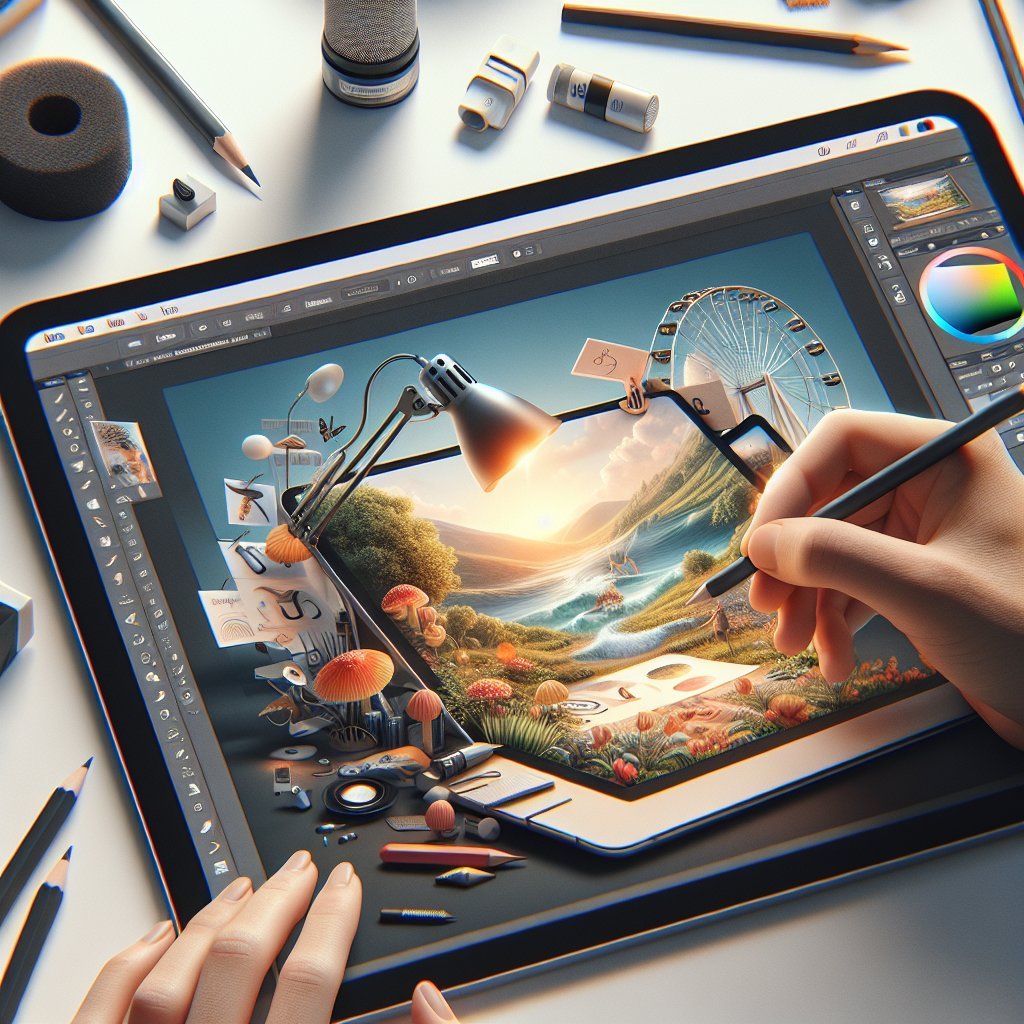
Custom shortcuts and hardware buttons Program tablet express keys, stylus buttons, and keyboard shortcuts for frequently used tools like undo, brush size adjustments, and zoom. Set radial menus for quick access to actions such as flip canvas, rotate, or color picker. Learn modifier combinations (Shift, Alt, Ctrl/Cmd) in your art software and map them to hardware for faster, ergonomic access. Test and refine the layout until reaching muscle memory for common tasks.
Workflow organization and file management Adopt a consistent file-naming convention including project name, version, and date. Use cloud backups like Dropbox, Google Drive, or dedicated creative cloud services and maintain local incremental backups with Time Machine or File History. Use separate folders for references, sketches, work-in-progress exports, and final assets. Implement version control: save iterative files frequently and flag milestone versions with descriptive suffixes (v01_sketch, v02_colors).
Speed and performance tips Optimize performance by limiting active layers, using lower-resolution proxies for sketching, and flattening finalized groups. Use GPU acceleration in software preferences when available. Purge histories and caches periodically to free memory. For large PSDs, consider splitting assets across files and composing final scenes in a master document to reduce strain.
Ergonomics and healthy habits Maintain neutral wrist posture and alternate between drawing and stretching every 30–60 minutes. Use an adjustable chair and desk to keep shoulders relaxed and eyes level with the screen. Consider pen grips or gloves to reduce friction and prevent heat buildup. Back up posture with short microbreaks and exercises targeting hands, neck, and shoulders to stave off repetitive strain injuries.
Testing and iteration Run timed exercises to test pressure sensitivity, brush response, and mapping accuracy—draw spirals, straight lines, and hatching patterns. Adjust driver settings and software brushes iteratively until strokes feel natural. Keep a log of settings that work for particular styles or project types. Periodically update drivers and software to benefit from optimizations and new features, but keep a stable configuration saved in case updates introduce regressions.
Maintenance and troubleshooting Clean the drawing surface with a microfiber cloth and isopropyl alcohol (diluted) cautiously. Replace worn nibs and check battery levels if the stylus uses power. If issues arise—drift, lag, or button failure—reinstall drivers, test on another computer, and contact support. Maintain a small toolkit: spare cables, replacement nibs, and a stylus charger or batteries.
By following these practical setup steps and refining settings to match your habits, you can create a responsive, efficient digital illustration environment that minimizes friction and maximizes creativity workflow