
Choose the Right Monitors Selecting monitors begins with purpose: color-critical design needs an IPS panel with wide color gamut (sRGB, Adobe RGB, DCI-P3) and factory calibration or calibration support. Use matched models for consistent color and contrast. For general layout and multitasking, consider a secondary monitor with high resolution and larger diagonal to serve as a canvas or reference. Prioritize at least 27 inches and 1440p for primary use; 24–27 inches for secondary is ideal. Pay attention to refresh rate and response time if motion graphics or video editing are frequent tasks.
Calibration and Color Management Calibrate both displays using a hardware colorimeter. Create and save ICC profiles, and enable color management in design apps (Photoshop, Illustrator, InDesign, Figma, Sketch). Keep ambient lighting consistent and use a monitor hood if possible to reduce glare. Set white point to 5000K–6500K depending on print versus web workflow; document clients often require 5000K for print.
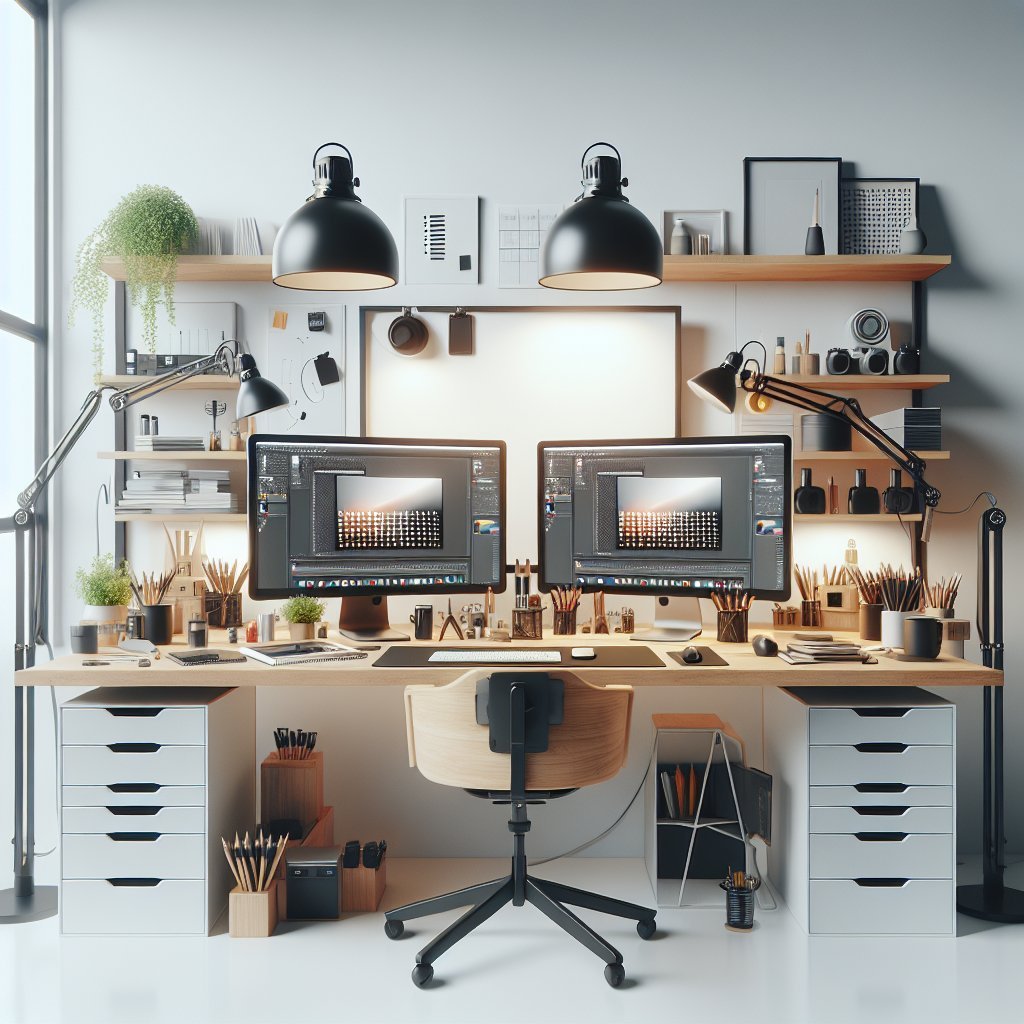
Ergonomics and Physical Arrangement Place the primary monitor directly in front of you at eye level with the top third of the screen at or slightly below eye height. Position the secondary monitor to the side, angled inward at 15–30 degrees to reduce neck strain. If you use both screens equally, consider a dual-monitor stand with height, swivel, and pivot adjustments for a seamless centerline. Maintain an arm’s length distance (~50–70 cm) from screens to minimize eye fatigue.
Workspace Layout and Use Cases Designers commonly use dual monitors in three configurations: extended canvas (primary for tools, secondary for full-screen canvas), mirrored for client review, or vertical for long web pages and code. Map your workflow: put creative apps and palettes on the less color-critical screen and the main canvas on the calibrated monitor. Keep reference materials, email, and communication apps confined to the secondary monitor to reduce interruptions.
Window Management and Productivity Tools Use window management utilities to snap windows quickly into presets. On macOS, tools like Rectangle, Magnet, or BetterSnapTool; on Windows, PowerToys FancyZones; on Linux, use i3 or KDE tiling options. Create app-specific layouts and keyboard shortcuts so opening a project automatically arranges toolbars, inspector panels, and references across both monitors.
System Performance and GPU Considerations Dual monitors increase GPU and CPU load, especially with high resolutions and color depths. Choose a graphics card with sufficient VRAM to drive both displays at native resolution and color depth; modern integrated GPUs may suffice for 2D design, but video editors and 3D artists should invest in discrete GPUs from NVIDIA or AMD. Ensure up-to-date drivers and enable GPU acceleration in software to keep brushes, layer previews, and playback responsive.
Peripherals and Input Devices Optimize input devices for comfort and efficiency. Mechanical keyboards with programmable macros, a high-precision mouse, and a graphics tablet or pen display improve control. Place your keyboard centered with the primary monitor; if you angle monitors for a panoramic workspace, consider a split keyboard or compact layout to reduce reach.
Color Workflow Across Devices When collaborating or preparing deliverables, proof files on multiple displays and devices. Soft-proof in application software, check on calibrated laptops and mobile phones, and print test proofs for client sign-off when possible. Embed color profiles in exported files and use export presets for common destinations (web sRGB, print CMYK with proper profiles).
Cable Management and Connectivity Use DisplayPort or HDMI 2.0+ cables to support higher resolutions and refresh rates. For simpler setups, use a docking station or USB-C hub that supports dual external monitors and power delivery. Label cables and route them through cable trays or clips to keep the desk uncluttered and minimize interference with other peripherals.
Lighting, Glare, and Ambient Conditions Control ambient light to limit reflections and preserve perceived color. Use bias lighting behind monitors to reduce pupil dilation and perceived contrast, improving color consistency across viewing sessions. Avoid direct sunlight and use blinds or neutral curtains. Aim for neutral wall colors to avoid color casts from painted surfaces.
File Organization and Template Management Standardize file naming, layer organization, and templates across projects so you can switch contexts without losing efficiency. Keep a master asset monitor (secondary) open with commonly used resources: fonts, icons, file export scripts, and a style guide. Automate repetitive tasks with actions, scripts, or batch processors to focus your primary monitor on creative decisions.
Maintenance and Routine Checks Clean screens with appropriate microfiber cloths and monitor-safe solutions to prevent streaks that mislead color perception. Recalibrate displays every 4–8 weeks depending on usage. Update monitor firmware and graphics drivers regularly. Test for dead pixels and backlight uniformity when purchasing used or refurbished displays.
Advanced Tips and Presets Create workspace presets tailored to specific tasks—branding, UI design, photo retouching, or video editing—so you can recall panel layouts, color profiles, and export settings instantly. Consider color-accurate external devices like hardware LUT boxes for broadcast work. Use virtual desktops to separate research and communication from active design canvases when you need uninterrupted focus.
Collaboration and Remote Review For shared reviews, use cloud-based tools with version history (Figma, Adobe XD, InVision) and live collaboration features. Stream or mirror your primary monitor at native resolution when conducting client walkthroughs, and supply flattened proofs with embedded profiles to avoid color mismatches.
Troubleshooting common dual-monitor issues Address common problems proactively: if screens show different brightness or color, recalibrate and verify profiles are applied to the correct display; check color depth and scaling settings to avoid blurriness; if one monitor flickers, inspect cable integrity, replace with certified cables, and test alternate ports. Resolve cursor or window crossing lag by adjusting display refresh rates or disabling exclusive fullscreen optimizations in demanding apps. When applications open on the wrong monitor, set the preferred display in operating system settings and save window positions with utilities or app-specific preferences. For color banding, increase bit depth in GPU control panel and enable dithering features where available. If performance drops when both monitors are active, close background tasks, increase system RAM, or use a display with a lower native resolution for secondary duties. Consider an external monitor hub solution.