
Dual Monitor vs Laptop-Only Graphic Design Workspaces: Which Is Best?
Design workflow demands clarity, speed, and creative control. Choosing between a dual-monitor desktop setup and a laptop-only workstation depends on tasks, budget, and mobility. This article compares productivity, color fidelity, ergonomics, hardware considerations, software workflows, and cost to help designers make an informed decision.
Workspace needs and workflows Dual monitors expand visual real estate, letting designers place design files, reference images, and tool palettes across screens. Typical scenarios: full-screen canvas on one display and panels, swatches, or emails on the other. Laptop-only setups force window switching and careful layer management but promote focused layouts and reduce distractions. For UI/UX designers, prototyping and device preview windows benefit from multiple displays. For illustrators who work primarily with a single canvas, a high-resolution laptop display can suffice if paired with efficient window management.
Visual real estate and multitasking Screen size and resolution matter more than display count. A 4K laptop screen provides dense detail but limited usable multitasking area compared with two 27-inch 1440p monitors. Dual screens reduce the time spent alt-tabbing, trimming workflow friction. Measured productivity studies show moderate gains—often 10–30%—in tasks requiring reference materials or frequent palette switching. However, poor monitor alignment or mismatched color profiles can negate benefits if the workflow relies on precise visual matching.
Color accuracy and calibration Color-critical work emphasizes calibrated displays. Many laptops contain excellent panels with factory calibration, but external monitors often outperform them in gamut coverage and uniformity. For consistent output, use a hardware calibration device (colorimeter) and profile all displays. Consider monitors with at least 99% sRGB and higher Adobe RGB or DCI-P3 coverage for print and film work. Beware of mixing a warm laptop panel with a cooler external monitor—without calibration, colors will drift between devices.
Performance, ports, and graphics hardware Modern laptops often pack powerful GPUs, but tethering to external displays can introduce performance or thermal constraints. Driving multiple high-resolution monitors increases GPU load and may require Thunderbolt 3/4 or DisplayPort outputs. Some laptops throttle under heavy sustained rendering loads; external GPU (eGPU) enclosures provide a solution but at extra cost. For laptop-only workflows, choose machines with ample RAM (16–32GB+), fast NVMe storage, and a GPU suited to raster and GPU-accelerated effects in Adobe Creative Cloud or Affinity apps.
Ergonomics and posture Dual-monitor setups can encourage poor posture if screens are misaligned or too low. Place primary monitor directly in front at eye level and secondary to the side, maintaining a neutral neck position. Laptop-only use often leads to looking down; a laptop riser and external keyboard/mouse or a wireless ergonomic keyboard and trackpad are essential for longer sessions. Standing desks, adjustable monitor arms, and proper chair height significantly reduce musculoskeletal strain regardless of setup.
Portability, collaboration, and client reviews Laptop-only setups shine for mobility—on-site reviews, coworking, or client meetings demand portability. Laptops paired with design tablets enable drawing in the field. Dual-monitor setups enhance in-studio collaboration, making simultaneous reviews and live edits easier, especially when one screen mirrors client-facing content. Consider hybrid solutions: a laptop for mobility plus a docking station and two external monitors in studio for the best of both worlds.
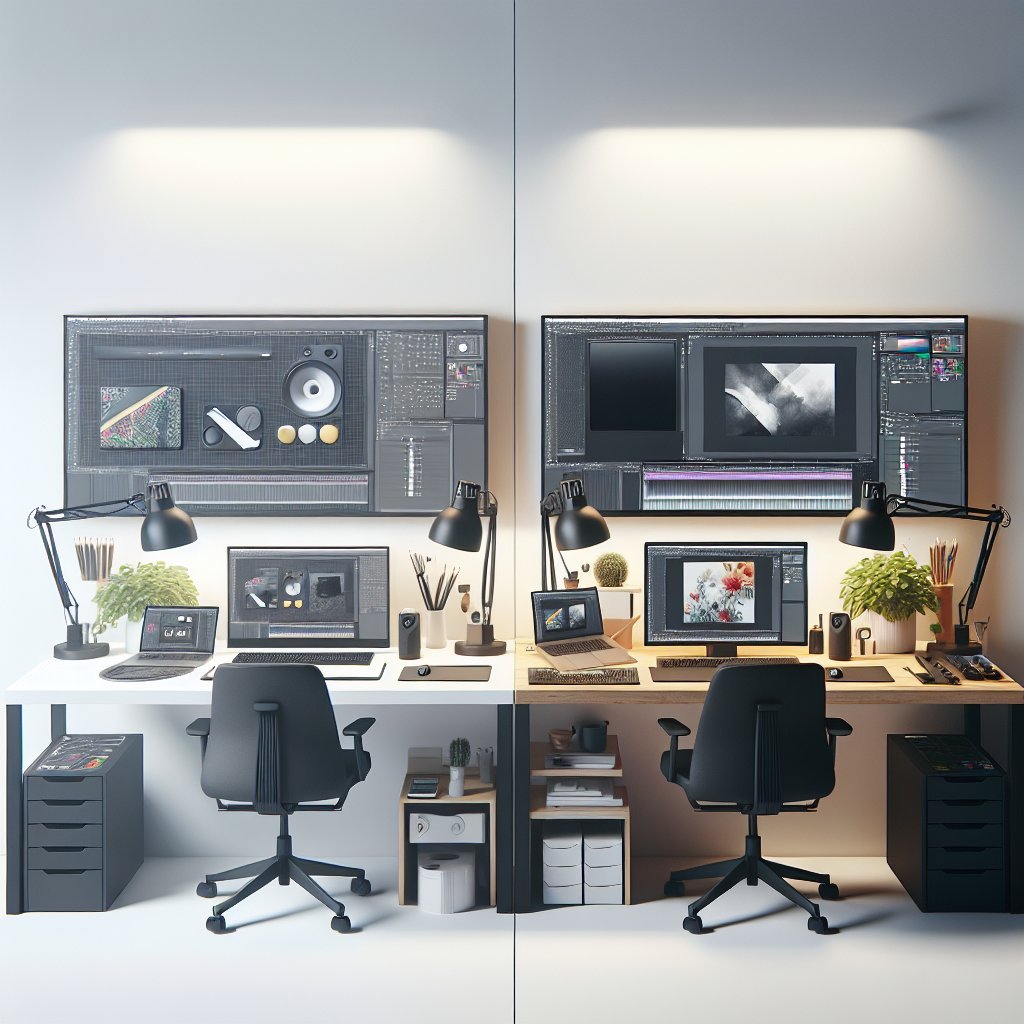
Software workflows and window management Design applications scale differently across multi-monitor environments. Illustrator, Photoshop, and Figma support multiple windows and undocked panels; some designers prefer dedicated palettes on a second display. Use virtual desktops and window snapping tools to replicate multi-screen organization on high-resolution laptops. Macro tools, custom keyboard shortcuts, and workspace presets reduce friction when switching between laptop and dual-monitor configurations.
Cost, space, and sustainability Budget dictates a lot. Quality color-accurate monitors represent an upfront investment, while a single powerful laptop consolidates cost but may limit upgradability. Dual-monitor setups require desk space, extra cables, and potentially a docking station. Factor in long-term maintainability: desktops and external monitors can be upgraded piecemeal, whereas laptops often force full replacement at obsolescence. Consider energy usage: multiple large monitors consume more power than a single laptop display.
Which to choose: decision matrix – Prioritize mobility and frequent client travel: laptop-only with strong specs, color calibration, and a portable drawing tablet. – Prioritize studio productivity and multi-window workflows: dual monitors with matched calibration, ergonomic setup, and a powerful desktop or docked laptop. – Prioritize color-critical print and film work: invest in high-gamut monitors with hardware calibration and reference viewing environment. – Limited budget or space: prioritize one high-quality external monitor plus the laptop screen, offering a compromise between portability and expanded workspace.
Practical setup tips – Calibrate all displays using a colorimeter and set consistent brightness targets. – Use monitor arms to save desk space and achieve ergonomic alignment. – Standardize profiles and test prints to verify color accuracy across devices. – Keep workspace decluttered and use cable management and docking solutions for quick laptop transitions. – Regularly back up projects to cloud or external drives to prevent data loss when switching machines.
References and resources Key resources include publications and studies from UXmatters, Nielsen Norman Group on multitasking productivity, Adobe documentation on GPU acceleration, and hardware reviews from reputable outlets for monitor color accuracy.
Checklist for buyers – Match monitor resolution and panel technology to your primary output (IPS/VA for color work). – Confirm ports and docking compatibility with current laptop. – Prioritize refresh and response times only for motion-heavy projects. – Test for uniformity, backlight bleed, and viewing angle consistency. – Allocate budget for calibration hardware and quality cables.
Common misconceptions Many designers assume more monitors always equal better creativity. In reality, excess screens can foster clutter and context-switch costs. A disciplined workspace, consistent color workflow, and optimized software shortcuts frequently yield greater efficiency than simply adding displays. Notebook screens have improved significantly; a high-quality laptop with a single well-calibrated external monitor often satisfies most professional needs. When in doubt, trial a dual-monitor setup temporarily or use a coworking space to test configurations before committing to hardware purchases.
Quick actionable steps Calibrate weekly. Use desk riser. Dock with Thunderbolt. Backup automatically. Reassess annually. Test color across printers and mobile devices to validate end-to-end fidelity and client expectations. Measure brightness and contrast regularly.