
Choose the right platform and planner format Selecting your digital environment is the foundation of an effective planner dashboard. Begin by deciding whether you prefer an app-based planner (Notion, OneNote, GoodNotes, Obsidian) or calendar-centric tools (Google Calendar, Outlook, Apple Calendar) with integrated dashboards. For stylus users, tablet apps that mimic paper can be ideal, while keyboard-focused users may benefit more from database-style tools. Prioritize cross-device syncing, offline access, and data export options so your dashboard remains accessible and safe over time. Consider whether you prefer a minimalist layout or a more visual, widget-based interface with color, icons, and embedded media. The right platform should feel intuitive, reduce friction, and align with your existing workflows rather than forcing you to adjust your habits dramatically.
Define your productivity vision and priorities Before building any sections, clarify what “maximum productivity” means for you. Some people optimize for output, others for balanced energy and sustainable habits. List your top life domains (work, business, health, learning, relationships, finances, creativity), then rank them in order of importance. Translate each domain into 1–3 measurable goals—for example, “Ship one client project per month” or “Exercise four times per week.” These priorities inform every widget, page, and shortcut you add to your dashboard. If your planner does not clearly reflect your real priorities, it becomes cluttered quickly. When setting up your dashboard, keep your highest-impact goals above the fold so they are visible every time you open the planner. This creates a constant, subtle alignment between daily tasks and long-term direction.
Design a clear, single-screen home dashboard A digital planner dashboard should function as your control center. Aim to keep the most important information on one main screen, reducing the need to click through multiple pages. Typical core sections include Today at a Glance, Weekly Focus, Top 3 Priorities, Calendar Overview, and Quick Capture. Group related blocks visually using columns, borders, or color-coded headers. Center your “Today” block so it draws your eye first. Place reference sections like goals or notes in side panels that you can expand when needed. Avoid overcrowding with too many widgets; instead, aim for a balance between visibility and simplicity. If you are tempted to add another section, ask whether it will be used daily or whether it belongs on a secondary page accessed via a link.
Create a powerful daily overview section The daily overview is where execution happens. Structure it to support realistic planning and focused action. Include a dated header, three non-negotiable priorities, and a short list of supporting tasks. Add a time-blocking or hourly schedule area for meetings, deep work, and breaks. Integrate reminders such as deadlines, calls, or errands that must occur on that specific day. Many people benefit from adding a short “morning review” checklist directly in the daily section to set intentions, and an “evening review” checklist for reflection. To reduce context switching, embed or link relevant documents, notes, or project pages so you can jump directly to supporting materials. If your platform allows, add progress toggles or checkboxes that provide visual satisfaction and reinforce consistent completion.
Set up weekly and monthly focus pages While the dashboard keeps you present-focused, separate weekly and monthly pages ensure your planning remains strategic. On a weekly overview page, include space for a key theme of the week, major deadlines, habit trackers, and a backlog of tasks waiting to be scheduled. Use this page during a weekly review session to assign tasks to specific days via drag-and-drop or date filters. For monthly pages, track larger goals, milestones, and recurring routines such as reports, bills, or content creation. Include a section for “wins,” “lessons learned,” and “changes to make next month.” Link these higher-level pages back to your main dashboard using buttons or navigation menus so you can move between views quickly without losing a sense of continuity.
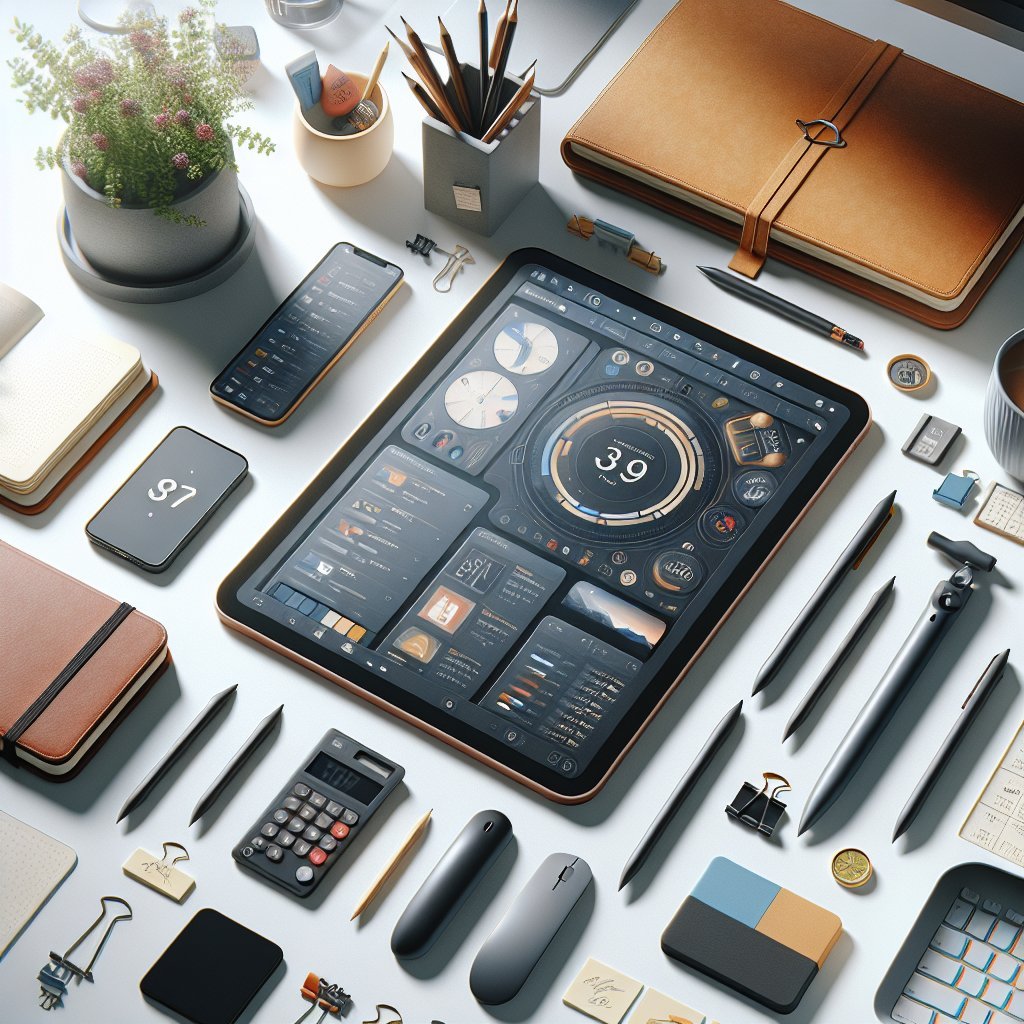
Integrate calendar, tasks, and notes in one place Maximum productivity depends on minimizing fragmented systems. Your digital planner dashboard should pull together events from your calendar, task lists from your to-do manager, and notes from your knowledge system. Whenever possible, use integrations or synced calendars so events appear automatically. For tasks, create a master database organized by project, priority, and due date, then filter it on the dashboard to show only what matters today or this week. Link notes or meeting summaries directly to tasks, so next steps are always obvious. When you capture ideas or reference material, assign tags or project labels immediately. This integrated design prevents items from slipping through cracks and reduces the time spent searching across disjointed apps.
Use visual hierarchy, color, and icons strategically Design principles significantly affect how quickly you can interpret your dashboard. Use a clear hierarchy: largest headings for key areas, smaller text for details, and consistent fonts for readability. Introduce a simple color system tied to life domains or project types, ensuring each color has one meaning. For example, blue for deep work, red for deadlines, green for health, and yellow for personal life. Apply color sparingly to headings, borders, or priority flags rather than flooding the entire layout. Icons and emojis, when used intentionally, help you scan the dashboard rapidly: a clock for schedules, a checkmark for tasks, a star for high-impact goals. Maintain a style guide so your formatting stays coherent as your planner evolves.
Build habit and routine trackers directly into the dashboard Habits underpin productivity, so surface them prominently. Add a compact habit tracker widget that displays daily or weekly routines such as exercise, reading, planning, or deep work blocks. Use checkboxes, toggles, or progress bars to encourage consistency and give immediate visual feedback. If your platform supports formulas or rollups, summarize streaks or completion rates over time and display them as simple graphs. Pair each habit with a clear trigger: for example, review the dashboard as soon as you sit at your desk, or complete your evening review before shutting down your computer. Embedding habits into the dashboard itself helps transform planning from an occasional activity into a dependable routine.
Optimize for quick capture and minimal friction A productive planner dashboard must make capturing information effortless. Create a clearly labeled Quick Capture or Inbox section at the top or side of the dashboard. Use it to dump ideas, tasks, links, and notes without worrying about organization in the moment. Later, during a daily or weekly review, process this inbox by assigning dates, tags, and projects. If your platform allows mobile widgets or shortcuts, set up a one-tap capture button on your phone so you can add to the inbox even away from your main device. Reduce the number of taps or clicks required to log a new task; small amounts of friction discourage usage and lead to mental clutter outside the system.
Implement proven productivity frameworks Enhance your digital planner with established frameworks that have been tested in real productivity systems. Incorporate the Eisenhower Matrix by tagging tasks as urgent/important, important/not-urgent, and so on, then filter these categories into separate dashboard views. Apply GTD principles by maintaining lists such as Next Actions, Waiting For, Someday/Maybe, and Projects, each accessible from the navigation menu. Use time-blocking to assign specific calendar windows to focused work, visible directly on the dashboard. If you follow OKRs or SMART goals, embed a summary of current objectives and key results at the top of your weekly or monthly section. These frameworks add structure, helping you make better decisions about what to do next.
Establish review rituals and continuous improvement The effectiveness of a digital planner dashboard comes from ongoing refinement, not one-time setup. Schedule recurring review sessions and display them as recurring tasks or events. During a daily review, clear your inbox, update completed tasks, reschedule unfinished items, and reflect briefly on what worked. During a weekly review, reconnect with your goals, adjust priorities, and prune any dashboard sections you are not using. At least once a month, evaluate whether your layout still supports your current workload and life season. Remove clutter, simplify navigation, and experiment with small layout changes. Over time, your dashboard becomes a personalized productivity command center that evolves alongside your goals, technology, and habits.