
Ultimate Guide to Choosing the Best Digital Tablet for Illustrators
Why the right tablet matters A tablet is the bridge between creative intent and final artwork, and choosing the right one directly affects speed, comfort, and artistic expression. Illustrators need pressure, response, color accuracy, and ergonomics tuned to their workflow.
Key features to consider Display quality: resolution, color gamut, brightness and reflectivity determine how accurately your work looks during creation. Pen performance: pressure sensitivity, tilt recognition, nib feel, latency and absence of parallax affect drawing precision. Size and ergonomics: larger screens give space to work but reduce portability and increase cost; choose a size that matches your studio habits. Connectivity: USB-C, HDMI, Bluetooth, and standalone OS options influence compatibility with software and peripherals. Hardware performance: GPU, CPU, RAM and storage determine how well large files and brushes perform. Budget and ecosystem: stylus replacement costs, warranty, available drivers, and community resources matter for long-term use.
Display and color accuracy Look for tablets with at least 1080p resolution for clarity; 2.5K-4K panels benefit detailed linework. Color gamut coverage (sRGB, Adobe RGB, DCI-P3 percentages) and factory calibration are essential if you deliver print work or need consistent color across devices.
Pen performance: pressure, tilt, and latency High pressure levels (2048 to 8192) allow nuanced stroke weight, but sensitivity alone isn’t everything; the pen’s tilt capabilities and low latency ensure natural shading and brush behavior. Look for battery-free pens or long battery life to avoid interruptions, and replaceable nibs for tactile preference.
Size, portability, and workspace fit Tablet sizes range from compact 10-inch drawing surfaces to 24-inch creative displays. Consider desk space, dominant drawing hand, and whether you travel with the device. Smaller tablets are affordable and portable; larger screens improve ergonomics and reduce zooming, but also increase weight and cost.
Performance, drivers, and software compatibility A responsive device requires stable drivers and optimized integration with major creative apps like Photoshop, Clip Studio Paint, Procreate (iPad only) and Krita. Research community forums for driver issues and OS compatibility notes.
Standalone tablets vs pen displays vs drawing tablets Standalone tablets (iPad Pro, Samsung Galaxy Tab S series) run apps natively and offer portability, but may restrict desktop-class software. Pen displays (Wacom Cintiq, XP-Pen Artist Pro) require a connected computer and generally provide stronger color accuracy and control. Drawing tablets (Wacom Intuos, Huion Inspiroy) are affordable input surfaces that need a monitor; they’re great for tight budgets and learning fundamentals.
Budget tiers and suggestions Under $200: basic drawing tablets or small Intuos-class devices — good for beginners but limited in display and pen sophistication. $200–$800: midrange pen displays and higher-end Huion or XP-Pen models offer larger screens, better color, and improved pens. $800+: professional displays and standalone tablets (Wacom Cintiq Pro, iPad Pro, Microsoft Surface) deliver top performance, calibration options and ecosystem maturity.
Accessories, maintenance, and ergonomics Invest in a quality stand, a glove, spare nibs, pen case, and screen protectors to preserve surface texture. Calibrate regularly, keep drivers up to date, and use a colorimeter when color fidelity matters.
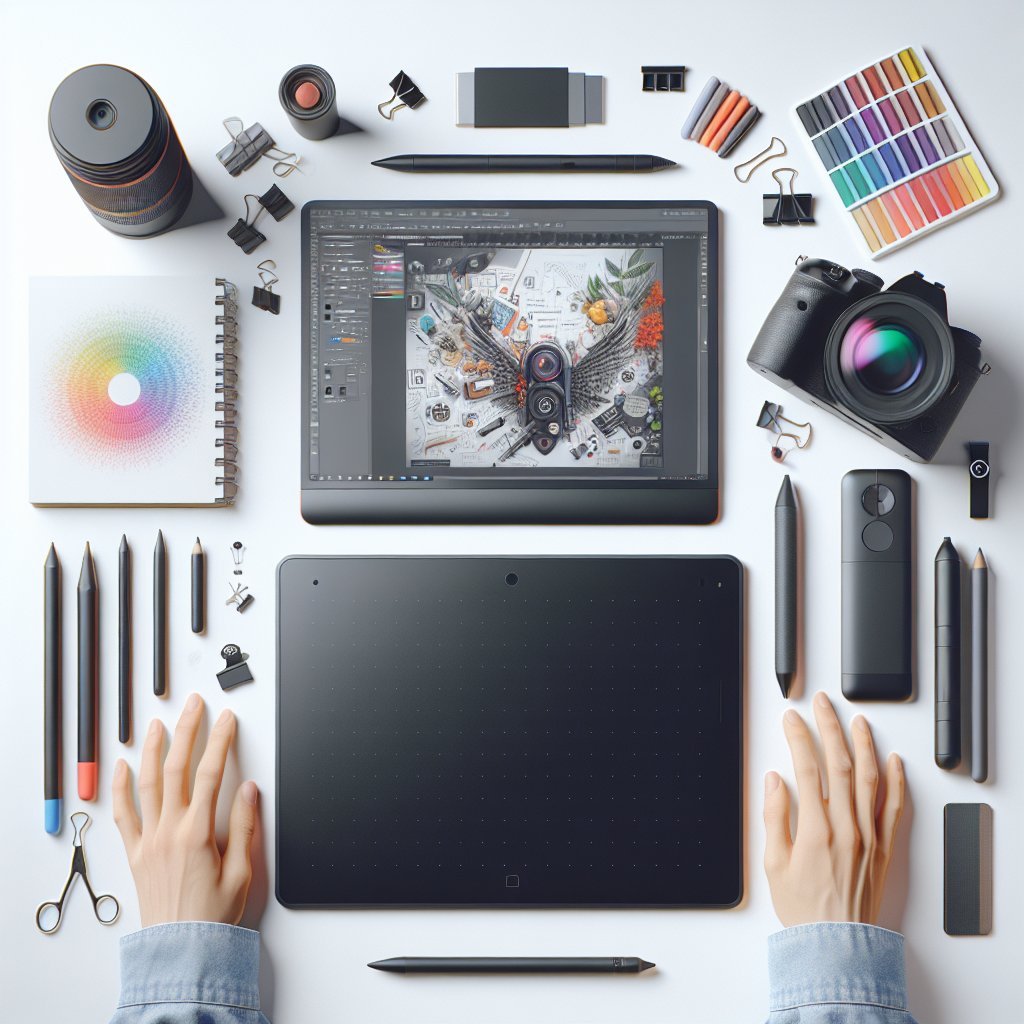
How to test a tablet before buying If possible, try pressuring strokes, gradual shading, diagonal lines, and fast strokes to evaluate jitter, latency, and angle performance. Open the brushes you use most to see real-world responsiveness. Ask about return policies and warranty length; many issues emerge after weeks of use.
Final buying checklist Is the display size suitable for my desk and workflow? Does the pen support adequate pressure levels and tilt? Are drivers stable and compatible with my OS and favorite apps? Is color accuracy acceptable or can I calibrate it? Does the budget include accessories, warranty, and replacement nibs? Can I test the device for latency, jitter, and parallax before purchase?
Workflow tips to get the most from your tablet Customize shortcut keys, tablet mappings, and pressure curves to match your preferred brushes. Create templates for color swatches and canvas sizes. Back up brush presets and drivers regularly and maintain a comfortable posture to prevent strain.
Common pitfalls to avoid Buying solely on brand name, choosing an oversized screen without considering desk space, ignoring driver reports, and skimping on warranty can lead to regrets. Avoid tablets with poor community support, as driver updates and software bugs are inevitable.
Recommended reading and resources Follow professional illustrator forums, manufacturer driver pages, and YouTube comparison reviews for hands-on tests. Check colorimeter and calibration guides from trusted tech reviewers to validate color claims.
Model recommendations by use case Beginner: Wacom Intuos Small or Huion Inspiroy H640P are low-cost choices that teach fundamentals without display costs. Intermediate: XP-Pen Artist 15.6 Pro or Huion Kamvas 16 balance screen quality, color, and pen performance for freelance illustrators. Professional: Wacom Cintiq Pro, iPad Pro with Apple Pencil 2, or Microsoft Surface Pro give premium displays, ecosystem integration, and advanced accessories suited for studio production.
Choosing between iPad and Wacom iPads excel in portability, app diversity, and touchscreen integration while Wacom excels in professional driver stability, pen precision, and customization for desktop software.
Long-term maintenance schedule Monthly: update drivers and OS, inspect nib wear, and back up presets. Quarterly: recalibrate color, clean vents and ports, and evaluate ergonomics. Yearly: replace worn accessories, check warranty status, and consider trade-in or upgrade options.
Accessibility and health considerations Left-handed users should check driver mapping and express key placement. Artists with repetitive strain history should prioritize tilt support, lighter pens, and programmable controls to reduce movement. Anti-glare screen protectors and adjustable stands reduce neck strain, while regular breaks and stretching prevent fatigue.
Budget stretching strategies Buy refurbished or factory-open units from reputable sellers to save costs, and purchase third-party nib packs in bulk. Consider leasing high-end equipment or using coworking studios for occasional projects. Prioritize pen and driver stability over gimmicky features when funds are tight.
Keywords to search when comparing tablets Search phrases: ‘best drawing tablet for illustrators’, ‘pen display vs standalone’, ‘tablet pressure sensitivity comparison’, ‘calibrated color tablet for artists’, ‘low-latency stylus review’, and ‘tablet driver compatibility list’. Include model year and software version filters.