
How Deep Art Effects AI Works Deep Art Effects uses convolutional neural networks and neural style transfer to map the texture, color, and brushwork of a chosen art style onto your photo. The process isolates low-level content (shapes and composition) from high-level style (color palettes, strokes) and recombines them to produce a coherent artistic rendition. The software includes pretrained styles inspired by classical paintings, modern illustrations, cartoons, and photographic filters, plus tools to fine-tune intensity and preserve details.
Preparing Your Photos Choose images with clear subjects, good contrast, and minimal clutter. High-resolution originals (1,500–5,000 pixels on the longest side) yield sharper results and reduce artifacts. For portraits, maintain clean backgrounds or use shallow depth of field to separate the subject. For landscapes and architecture, capture distinct edges and varied textures. Save copies of originals in JPEG or PNG before processing.
Step-by-step Transformation Workflow 1. Install and sign in: Download the Deep Art Effects desktop app (Windows/macOS), mobile app (iOS/Android), or register for the web platform. Create an account or log in with Google or email. 2. Upload your image: Click Upload or drag-and-drop. For batch jobs, select multiple files and verify file sizes against your plan limits. 3. Pick a style: Browse categories—classic, modern, abstract, comic, photo filters—and preview styles at different strengths. Use keyword search for styles like “Van Gogh,” “watercolor,” or “pop art.” 4. Adjust settings: Control style intensity, detail preservation, and color transfer. Use sliders for brush size and stroke direction where available. Enabling the “preserve details” option helps keep facial features and text legible. 5. Use masks and layers: Apply masks to protect areas (faces, text, logos) from stylization or to restrict effects to backgrounds. Layers enable combining multiple styles; render a foreground with detailed preservation and a background with heavy stylization. 6. Preview and iterate: Use the split view or before/after comparison to judge results. Make incremental adjustments and re-render lightweight previews to save time. 7. Export: Choose export resolution and file format. For print, export TIFF or high-quality PNG at 300 DPI. For web, choose compressed JPEGs with sRGB color profile.
Tips for Optimal Results – Match style complexity to image content: Intricate painting styles work best with textured scenes; minimalist styles complement portraits. – Control noise and artifacts: Apply mild denoising before stylization or reduce style strength to avoid haloing and color banding. – Pay attention to faces: Use the face-preserve feature and manual masking to retain realistic eyes and skin tone. – Color grading: After rendering, fine-tune colors in an editor (Lightroom, Photoshop) to restore highlights, shadows, and white balance. – Upscaling: If the app’s max export is low, render at the highest available resolution and use AI upscalers (Gigapixel, Photoshop Super Resolution) for larger prints.
Advanced Techniques – Multi-pass rendering: Render an image in two or three passes with different styles—use a subtle base style, then apply a stronger accent style on a duplicated layer and mask selectively. – Custom style creation: Train or upload your own style images to create unique presets. Select several reference paintings to average brushwork and color tendencies. – Blend modes and opacity: Export multiple style variants and composite them in Photoshop using blend modes (overlay, soft light) to achieve nuanced textures. – Batch automation and API: Use the Deep Art Effects API or desktop batch queue for consistent processing across large photo libraries or e-commerce product images.
Common Problems and Solutions – Blocky artifacts: Reduce style intensity, increase preserve-detail, or use a higher-resolution source image. – Color shift: Lock color transfer if available, or manually correct hues post-render. – Slow processing: Use lower preview quality, process during off-peak hours, or upgrade to a Pro/Studio plan for faster GPU rendering. – Banding in gradients: Export at higher bit depth or apply slight noise/grain to dither gradients.
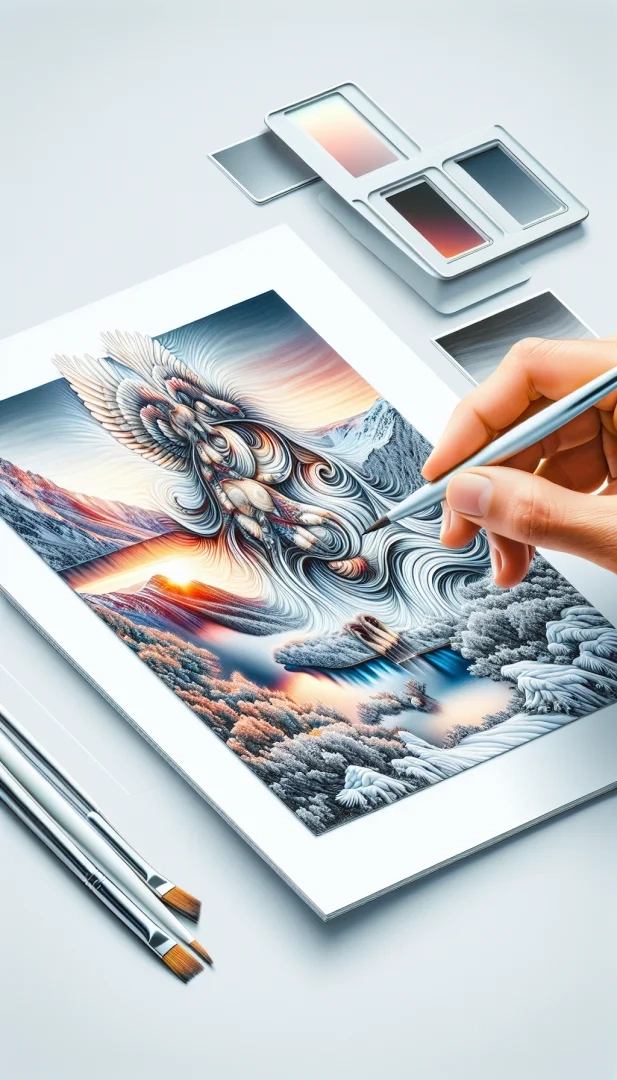
Use Cases and Practical Applications – Social media content: Create eye-catching posts and Instagram stories; consistent style presets build brand identity. – Fine-art prints: Produce gallery-ready canvases by combining high-res input, multi-pass rendering, and professional printing profiles. – Product imagery: Stylize backgrounds to emphasize products while preserving product detail using masking. – Editorial and marketing: Turn lifestyle photos into editorial illustrations for blog headers, book covers, and promotional banners.
Pricing, Platforms, and Licensing Deep Art Effects offers free tiers with watermarking and limited resolution, paid subscriptions for higher throughput and watermark removal, and enterprise licenses for API access and on-premise deployment. Choose a plan based on export resolution, batch requirements, and commercial licensing needs. Check the license terms for reproducing and selling transformed images.
Workflow Examples – Portrait makeover for social profiles: Start with a clean headshot, enable face preserving, apply a subtle painterly style, adjust color temperature, and export at 2048 px for crisp display. – stylized product catalog: Batch upload product shots, apply a consistent minimalistic graphic style, mask products to keep edges sharp, and export optimized JPEGs for web.
Keyword-focused practices Include target keywords naturally in filenames, alt text, captions, and headings: “Deep Art Effects,” “AI art,” “transform photos,” “neural style transfer,” and “photo to art.” Compress images properly, provide descriptive metadata, and use structured data on web pages to improve discoverability.
Security and Privacy Considerations Review terms regarding image ownership and AI training. For sensitive or proprietary images, use on-premise or private-cloud deployment options. Always keep backups of originals and maintain clear records of commercial usage rights.
Quick checklist before rendering: verify resolution and crop, duplicate the original, decide on a primary style and a secondary accent, create masks for faces and text, preview at low quality, adjust preserve-detail and color-lock settings, and schedule batch jobs during off-peak hours. Resources to learn more: Deep Art Effects documentation, community forums, video tutorials, and style-sharing marketplaces where creators publish presets. Experiment regularly: test variations on small crops to compare strokes, contrast, and saturation; maintain a library of favorite style presets; and document settings that produced the best results for different subjects. Legal tip: when using public artwork as a style reference, confirm that copyright permits transformation for your intended use or prefer public-domain references. Practice workflow refinement monthly, track presets performance metrics, and update your style library based on engagement and print sales regularly too.