
Workspace layout & posture
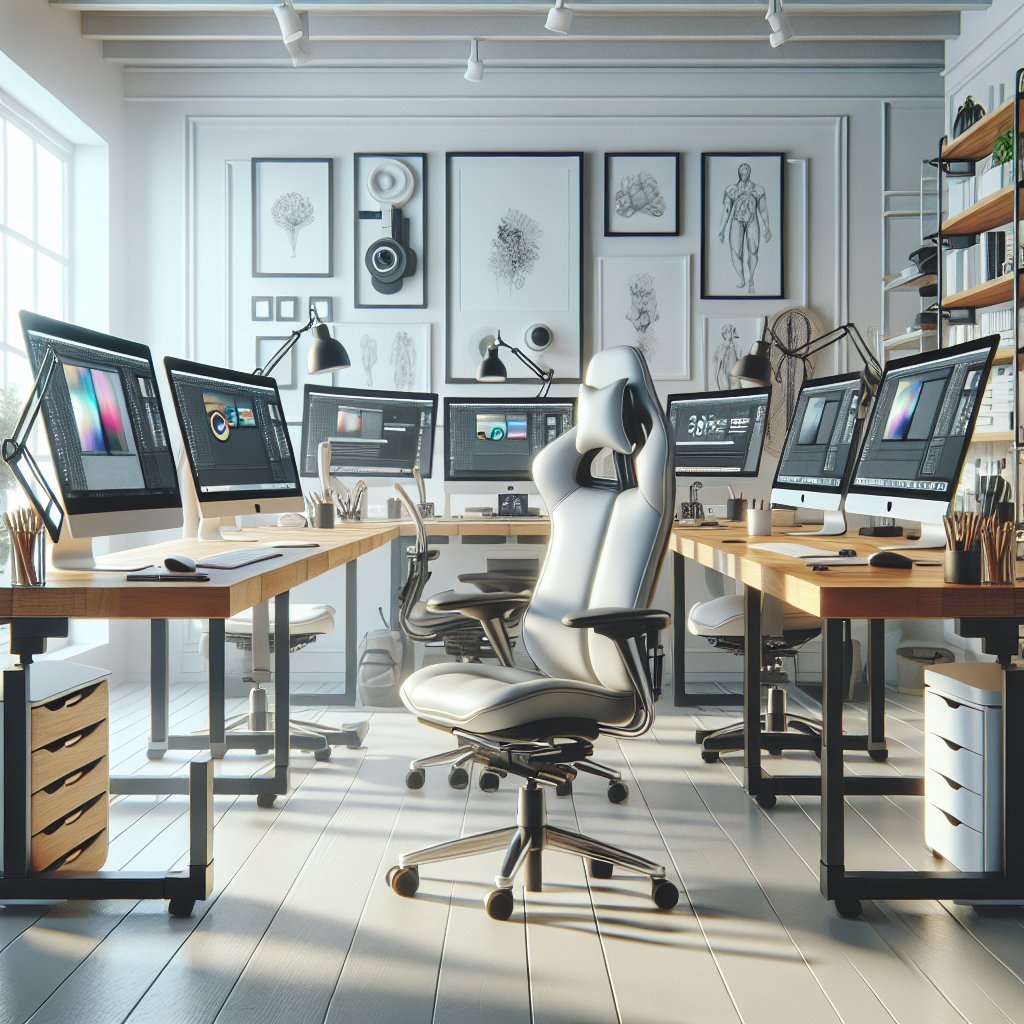
Position your desk so there is enough legroom and you can sit with hips slightly higher than knees. Use a height-adjustable desk or a sit-stand converter to alternate every 30–60 minutes. Adjust chair height until feet rest flat on the floor or on a footrest. Select an ergonomic chair with adjustable lumbar support, seat depth, armrests, and a breathable material to reduce heat buildup. Maintain a neutral spine: ears over shoulders, shoulders relaxed, and elbows close to the body at about 90 degrees.
Monitor(s) and display setup
Place the primary monitor directly in front of you at arm’s length (about 20–30 inches). Top of the screen should be at or slightly below eye level to minimize neck flexion. If using dual monitors, angle them inward with the primary in the center and the secondary rotated slightly for peripheral use. For color-critical work, use a high-resolution, color-calibrated monitor and perform hardware calibration weekly or monthly depending on workload. Reduce glare with matte screen filters or repositioning; use monitor hoods for consistent color and contrast.
Input devices and accessories
Choose a sculpted keyboard or an ergonomic split keyboard to maintain a neutral wrist posture. Position keyboard so that forearms are parallel to the floor. Use a vertical or trackball mouse to reduce forearm pronation and consider programmable buttons to speed repetitive tasks. Pen displays and tablets should be placed at a slight incline or on an adjustable arm to mimic natural drawing angles; avoid hunching the wrist when drawing. Keep commonly used tools within easy reach to avoid repetitive reaching movements.
Desk organization and cable management
Create zones: a primary work zone for input devices and monitor, a reference zone for swatches and notes, and a tools zone for peripherals. Use a desk with rounded edges to prevent pressure on forearms. Implement under-desk cable trays, adhesive clips, and Velcro ties to secure cords; clutter reduction decreases visual distraction and allows for more freedom of movement. Keep frequently used items at elbow range (within 12–20 inches) and less-used items farther away.
Lighting and visual ergonomics
Aim for balanced ambient and task lighting. Use adjustable color temperature lamps that can shift from warm to cool to match screen conditions and reduce eye strain. Position task lights to illuminate reference materials without causing screen glare. Maintain 50–70% relative humidity and a room temperature around 68–72°F (20–22°C) to optimize comfort during long sessions. Use blue-light filters or enable night mode during evening work, but prioritize proper breaks over relying solely on filters.
Breaks, microbreaks, and eye health
Follow the 20-20-20 rule: every 20 minutes, look at something 20 feet away for 20 seconds. Schedule microbreaks of 30–60 seconds every 15–20 minutes to change posture and stretch. Longer breaks of 5–10 minutes every hour help circulation and cognitive refresh. Incorporate simple stretches: neck rotations, shoulder rolls, wrist flexor and extensor stretches, hip flexor openings, and seated spinal twists. Hydrate regularly and consider a timer app or Pomodoro technique to enforce movement.
Software ergonomics and workflow optimization
Customize keyboard shortcuts and create macros to reduce repetitive mouse movement. Use layered workspace layouts in design software to minimize tool switching. Keep a digital color swatch library and reusable asset folders to avoid recreating elements. Use window management tools to snap, resize, and switch between reference images and working files quickly. Adopt nondestructive workflows (smart objects, adjustment layers) to reduce the mental load of irreversible changes.
Accessories for comfort and productivity
Add a vertical footrest or a height-adjustable foot bar if you switch to standing to reduce lower-back strain. Use an anti-fatigue mat for standing sessions to distribute pressure across the feet and reduce muscle fatigue. Wrist rests for keyboards and mice should support neutral alignment without elevating wrists. Invest in a monitor arm to free desk space and allow quick monitor repositioning. Consider an adjustable task lamp, noise-cancelling headphones, and a small desktop humidifier if your environment is dry.
Ergonomic maintenance and habit building
Schedule monthly equipment checks: tighten monitor arms, examine chair casters, and inspect keyboards and tablets for wear. Recalibrate monitor color and input device sensitivity quarterly or as needed. Track symptoms such as tingling, persistent pain, or visual discomfort; early ergonomic adjustments often prevent long-term issues. Build habits: start sessions with a 1–2 minute posture check, plan breaks into your calendar, and gradually increase standing time if new to sit-stand desks.
Environmental and health considerations
Optimize room acoustics with rugs or acoustic panels to reduce cognitive fatigue from echo. Control natural light with blinds to prevent changing glare throughout the day. Maintain air quality with plants or air purifiers and avoid working directly in front of cold or hot vents. Consider ergonomics in lifestyle: good sleep, balanced nutrition, and regular cardiovascular exercise improve resilience to long creative sessions.
Quick checklist for an ergonomic digital graphic design workspace
– Height-adjustable desk or converter – Ergonomic chair with lumbar support – Monitor at eye level, arm’s length away – Color-calibrated, high-resolution display – Ergonomic keyboard and vertical/trackball mouse – Pen tablet/display positioned at a natural drawing angle – Anti-fatigue mat and footrest for standing – Proper ambient and task lighting with adjustable color temperature – Scheduled microbreaks and 20-20-20 eye rule – Cable management and clear desk zones
Implementing these evidence-based adjustments makes long graphic design sessions safer, more comfortable, and more productive while protecting vision, musculoskeletal health, and creative focus.
Advanced tips and budget considerations
Prioritize investments that protect health first: chair and monitor quality offer the best return. If budget is tight, upgrade one item at a time and supplement with low-cost helpers like external monitor stands, keyboard wedges, and mouse grips. Buy refurbished high-resolution monitors or certified factory-calibrated panels to save money without sacrificing color accuracy. Consider ergonomic training or an assessment with a physiotherapist if you experience recurring pain; sometimes technique adjustments are more effective than new gear. Test configurations incrementally and document what reduces fatigue. Track productivity and comfort changes to justify future upgrades. Small, iterative improvements often produce cumulative benefits for long creative workflows and lasting satisfaction.