
Top Drawing Tablets for Graphic Designers: A Comprehensive Review
Why the right tablet matters Graphic designers rely on pen precision, color fidelity, and an intuitive workflow. Selecting a drawing tablet affects sketch speed, editing accuracy, and client deliverables. Key decision factors include pressure sensitivity, tilt recognition, display quality, latency, active area, driver stability, and ecosystem compatibility with apps like Adobe Photoshop, Illustrator, Procreate, and Affinity Designer.
Key features to evaluate – Pressure levels: Look for 4,096 to 8,192 levels for nuanced line weight. – Tilt support: Enables natural shading and brush angle control. – Resolution & color: 2.5K to 4K displays and 100% sRGB or better improve color-critical work. – Latency: Low latency ensures pen strokes feel instantaneous. – Active area & portability: Balance workspace needs with studio vs. mobile use. – Stylus type: Battery-free pens reduce interruptions; rechargeable pens may offer additional features. – Driver/software ecosystem: Stable drivers and shortcut customization are essential.
Top picks for professional graphic designers
Wacom Cintiq Pro 24 / 32 – Standout features: Industry-leading color accuracy, Pro Pen 2 with 8,192 pressure levels, multi-touch support, and calibrated displays. – Pros: Exceptional build quality, virtually lag-free experience, deep compatibility with creative software, excellent tilt support. – Cons: High price point; requires desktop or laptop connection. – Best for: Studio professionals focused on illustration, concept art, and print-quality color work.
Wacom Intuos Pro – Standout features: Compact, pressure-sensitive tablet with multi-touch, customizable ExpressKeys, and high driver reliability. – Pros: Portable, durable, seamless integration with creative workflows, wireless option. – Cons: No display; learning curve for designers transitioning from paper. – Best for: Designers who prefer working with a separate monitor and need precise control and shortcuts.
Huion Kamvas Pro 24 / 22 – Standout features: Competitive price-to-performance with laminated anti-glare glass, 120% sRGB options, and battery-free stylus with up to 8,192 pressure levels. – Pros: Large active area, reduced parallax, good color accuracy for the price. – Cons: Driver quirks reported on some OS versions; calibration may need tweaking. – Best for: Budget-conscious professionals who want a pen display without compromising size or features.
XP-Pen Artist Pro 16 / 24 – Standout features: Sleek design, high pen accuracy, and vibrant displays with reduced parallax. – Pros: Affordable, responsive stylus, customizable shortcut keys. – Cons: Slightly fewer color gamut options compared to high-end models; some models require driver updates for best performance. – Best for: Freelancers and students seeking a balance of performance and affordability.
Apple iPad Pro with Apple Pencil (2nd Gen) – Standout features: ProMotion display with 120Hz refresh, industry-leading latency, Procreate optimization, and ultra-portability. – Pros: All-in-one device with excellent touch UI, vast app ecosystem, great for on-the-go sketching and client presentations. – Cons: iPadOS limitations for full desktop apps; color calibration varies by model. – Best for: Designers who need mobility, conceptual sketching, and tablet-native app workflows.
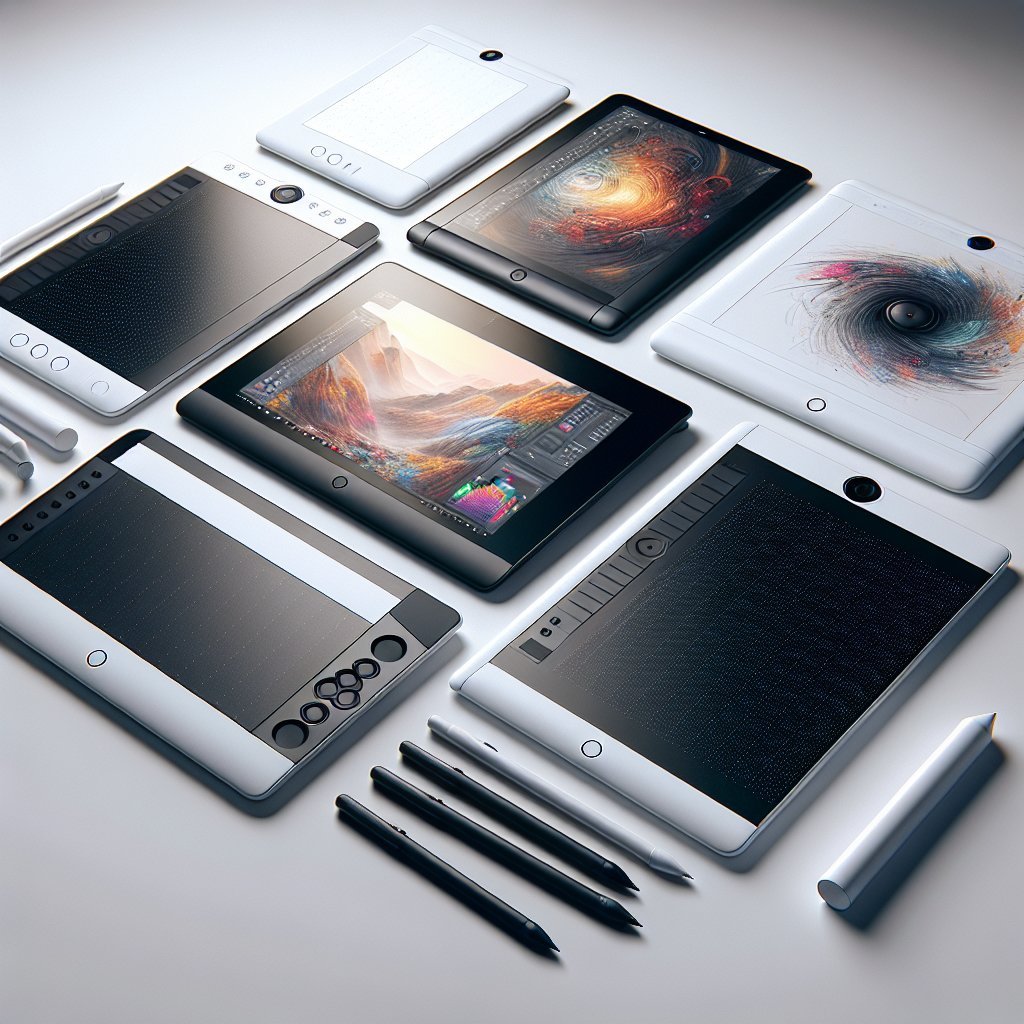
Microsoft Surface Pro with Surface Pen – Standout features: Full Windows 10/11 PC with a high-resolution PixelSense display and versatile 2-in-1 form factor. – Pros: Runs full desktop creative suites; pen latency and tilt support are good for many tasks. – Cons: Pen often sold separately; not as color-accurate as dedicated displays in the same price bracket. – Best for: Designers who want a single device for both general computing and creative work.
Specialty options and accessories – Wacom MobileStudio Pro: A mobile Cintiq alternative with full workstation power—ideal for heavy 3D or multi-app workflows. – Slate-style tablets (e.g., Huion Inspiroy): Lightweight, ideal for pairing with laptops when display is unnecessary. – Essential accessories: Ergonomic stand, screen protector (matte/gloss preference), extra nibs, wireless dongles, and color calibration tools.
Workflow tips for designers – Calibrate color: Use a colorimeter to match tablet display to client or print profiles. – Customize shortcuts: Map ExpressKeys and Touch Ring to speed repetitive tasks like brush size, zoom, and undo. – Manage pressure curves: Tweak pen sensitivity in driver settings to match drawing style for smoother strokes. – Optimize drivers: Keep tablet drivers up to date and test them with your primary applications to avoid conflicts. – Pen care: Replace nibs regularly and avoid dropping the pen to maintain tip responsiveness.
Choosing the right tablet for your practice – For illustration-heavy studios: Prioritize color-accurate pen displays with large sizes (24″ or 32″) and high pressure sensitivity. – For freelance and remote work: Balance portability with performance—iPad Pro and compact pen displays fit mobile workflows. – For budget-aware designers: Look for midrange Huion or XP-Pen models with good reviews for driver stability and warranty support. – For hybrid needs (desktop + tablet): Consider detachable options like Surface Pro or Wacom MobileStudio Pro that double as full PCs.
Price and warranty considerations – Expect to invest more for long-term reliability: Higher-end Wacom models often justify cost with durability and consistent driver support. – Third-party brands offer competitive warranties—check region-specific support and return policies. – Factor in recurring costs like replacement nibs, stands, and protective films.
Compatibility checklist before buying – Operating system support: Confirm macOS, Windows, or iPadOS compatibility for your main apps. – Software integration: Test compatibility with Photoshop brush tilt, Illustrator vector input, or Procreate gestures. – Connectivity: Look for USB-C, HDMI, or wireless options depending on your setup. – Driver stability: Read recent user feedback on forums for OS-specific driver issues.
Performance benchmarks to verify – Latency testing: Real-world drawing tests reveal perceptible lag; aim for near-instant response at typical canvas sizes. – Pressure linearity: Check stroke consistency across pressure range for natural taper and opacity control. – Color uniformity: Verify screen uniformity across the panel to prevent surprises in printed output.
Maintenance and longevity – Keep drivers updated and back up customized shortcut sets. – Clean screens with microfiber cloths and manufacturer-recommended cleaners. – Store pens in protective cases; avoid extreme temperatures that can degrade battery-based styluses.
This review focuses on practical strengths and trade-offs designers face when selecting a drawing tablet. Use the categories above to match device features to your workflow, software needs, and budget constraints for a more efficient creative process.